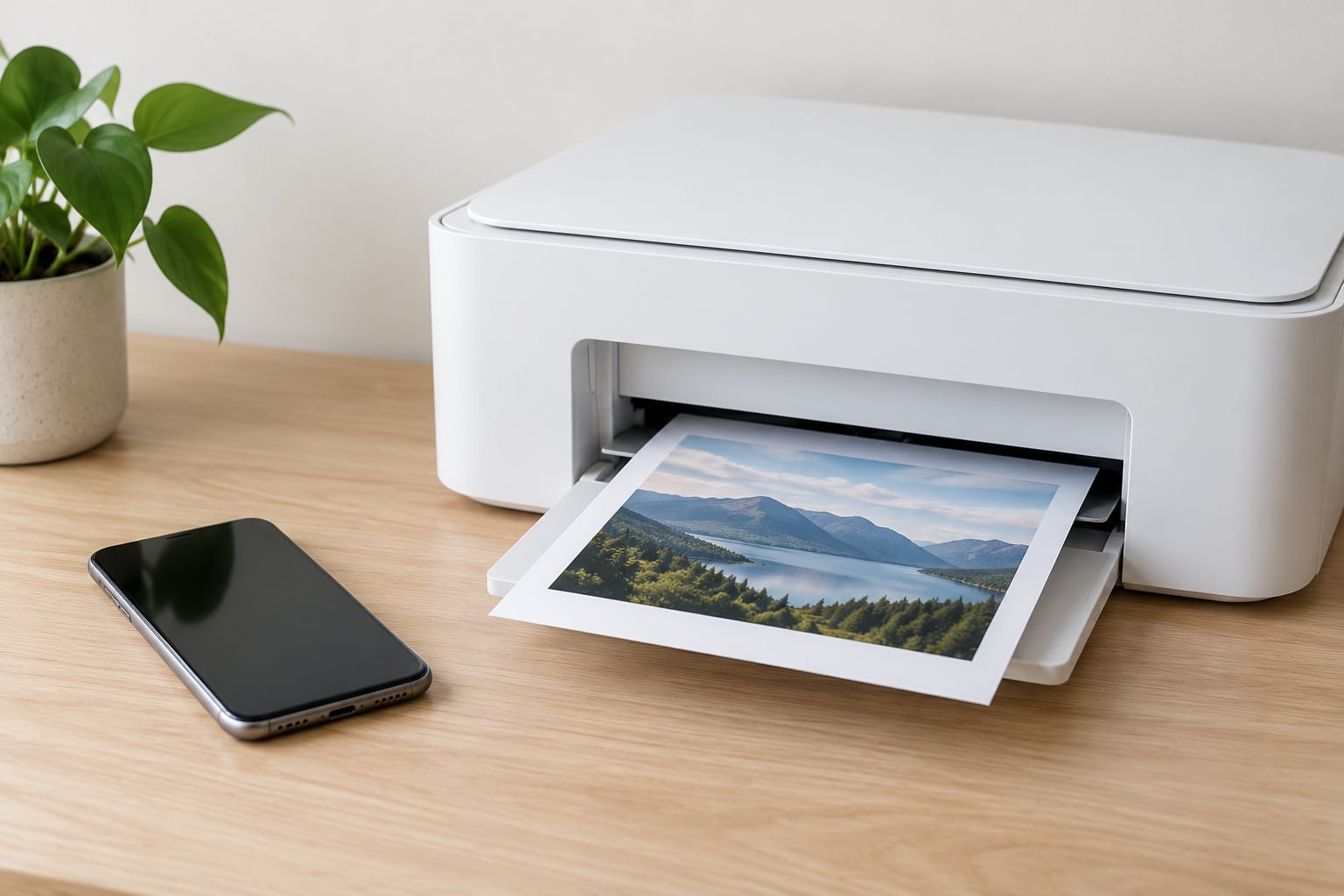
Yes, you can print from a phone without a computer. The phone sends the file straight to the printer over Wi-Fi, Wi-Fi Direct, Bluetooth or a USB cable, and the only requirement is that the printer is reachable and switched on. Most modern phones and printers handle this in about a minute once they are on the same network.
The catch is that older printers need a little help, either a maker’s app or a different connection route. Below I walk through every method, platform by platform, then fix the errors that stop people halfway.
Table of Contents›
- What You Need
- Step-by-Step: How to Print From a Phone Without a Computer
- How to Print from an iPhone or iPad Without a Computer
- How to Print from an Android Phone or Tablet Without a Computer
- How to Print from a Chromebook Without a Computer
- How to Print with Bluetooth, USB, Email, or Cloud Printing
- Common Mistakes
- The phone cannot find the printer at all
- The print job stays queued and never finishes
- Wrong paper size, orientation or missing pages
- Blank pages, solid black pages or colour problems
- The printer appears, then disappears when selected
- The document downloads instead of printing
- Printing broke right after an OS update
- Where is the printer setting on my phone?
- Frequently Asked Questions
- Do I need a computer to print from my phone?
- Why can’t my phone find my printer when both are on Wi-Fi?
- How do I print without using AirPrint?
- Can I print from my Android phone without using Wi-Fi?
- How do I print to an office or library printer without a computer?
- Is Google Cloud Print still an option?
- Conclusion
What You Need
Before you touch anything, check these five things. Most failed print jobs come down to one of them.
- A printer that is powered on and awake. Printers in deep sleep do not advertise themselves on the network. Press the power button and give it a few seconds.
- Both devices on the same Wi-Fi network. Same network, same password, and not one on the 2.4 GHz band while the other sits on 5 GHz with no bridge.
- A print feature on the phone. iPhones have AirPrint built in. Android needs a print service set as the default, usually Mopria Print Service or the manufacturer’s own app.
- A way to reach the printer. A known IP address helps when auto-discovery fails, and you can usually find it on the printer’s network settings page or its setup screen.
- The file in a printable format. PDF, JPEG, PNG and HTML all work. Some apps, files and browser pages do not.
To check whether your printer supports the wireless method you want, print its model number and search the maker’s support site for AirPrint or Mopria. Apple maintains an AirPrint compatibility list, and Mopria publishes a supported device database covering thousands of models.
Wireless printing needs none of this. If the printer only has a USB port, you can still use a USB cable with an adapter, or put a small print server between the printer and your network.
Step-by-Step: How to Print From a Phone Without a Computer
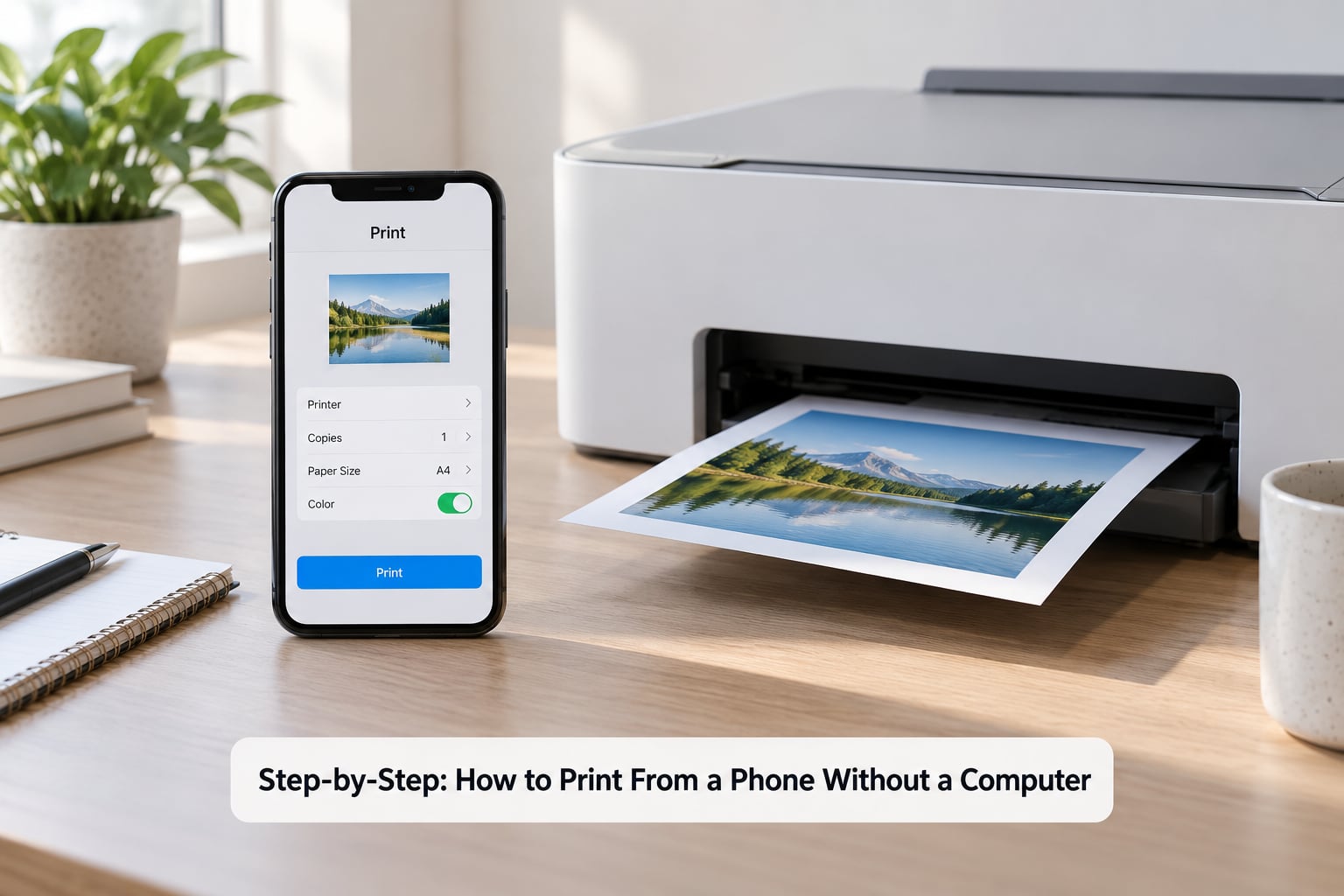
This six-step path works on almost any phone with any recent printer. Follow it first, then jump to the platform section if something specific fails.
- Turn the printer on and load paper.
- Connect your phone to the printer’s Wi-Fi network, or connect the printer to your home network.
- Open the file, photo or web page you want to print.
- Tap Share on iPhone, or the Print option in the three-dot menu on Android.
- Choose the printer from the list, set paper size and copies.
- Tap Print and pick the page up off the tray.
How to Print from an iPhone or iPad Without a Computer
iOS prints through AirPrint, Apple’s built-in wireless standard. If your printer supports it, there is no app to install and no driver to hunt down.
From Safari, tap the share button, scroll down and tap Print. From Photos, tap the share button, then Print. From Files, open the PDF, tap the share button and choose Print.
In the print options you can pick the printer, paper size such as A4 or Letter, number of copies, page range, and whether to print in colour or black and white. Double-sided and single-sided toggles appear when the printer supports them. Tap the image thumbnail at the top to add a preview, then tap Print in the top right.
To skip the printer picker every time, print once, then tap the printer name and turn on Use Printer Defaults. Long-press the icon and tap Add to Home Screen if you want a one-tap Print shortcut.
If the list says no AirPrint printers found, move on to the fixes in the troubleshooting section below.
How to Print from an Android Phone or Tablet Without a Computer
Android has no native equivalent of AirPrint. It relies on a print service, and only one can be set as the default at a time. That single fact causes most of the confusion people report.
Go to Settings, then Connected devices, then Print, then Default print service. Choose Mopria Print Service or your printer maker’s app. Mopria handles a wide range of network printers; the maker’s app often exposes extra settings like ink levels and duplex.
Then open the file and tap Print. In Google Photos, it is the printer-shaped icon in the toolbar. In Chrome, it is the share icon then Print. In Files or any document viewer, look for a Print option in the overflow menu.
If the phone and printer are not on the same network, look for a Wi-Fi Direct or SoftAP option in your phone’s Wi-Fi settings or in the maker’s app. The printer creates its own network, the phone joins it, and the job goes straight across.
Android versions differ slightly in wording. Some builds show Print under Settings and connected devices, others under Apps. The setting name to look for is always default print service.
How to Print from a Chromebook Without a Computer
A Chromebook already has printing built in, and a phone is not required. Open the document or web page, click the three-dot menu, and choose Print. Chrome lists network printers it has discovered and offers Save as PDF if nothing is found.
To add a printer that is not listed, open Settings, search for Printing, then Add printer. The Chromebook searches the network, and you can select the model or type the printer’s IP address. Once added, set it as the default under the same Printing panel.
If a printer shows as unavailable or offline, it is usually asleep, on a different network, or blocked by guest network isolation. Wake it, print a test page from its own menu, then add it again.
How to Print with Bluetooth, USB, Email, or Cloud Printing
Bluetooth is the right choice when there is no Wi-Fi at all. Pair the printer in your phone’s Bluetooth settings, open the maker’s app, pick the Bluetooth printer, then send the file. Bluetooth printing is common on portable photo printers and label printers, and it is slower than Wi-Fi.
USB works on Android with an OTG adapter, and on newer iPhones and iPads with a USB-C to USB-A adapter. Connect the cable, open the maker’s app and choose the USB printer. iOS itself does not print over raw USB, so you always need the app.
Email-to-print is the reliable fallback. Give the file to the printer by email instead. Printers with this feature have their own address, such as a dedicated Gmail address from the maker, and an app builds the PDF for you. Office printers often use a release code so the job stays in the queue until you are standing at the machine.
Cloud printing means the job travels to a server and out to the printer. Google Cloud Print was shut down in 2020 and does not work. The current options are vendor cloud services such as Epson Connect and HP Smart, and third-party services such as PrinterShare, which route the job through a remote print server. Read the privacy terms before uploading anything sensitive.
On security, print only on machines you own or have clear permission to use. Public Wi-Fi at hotels and airports usually blocks device-to-device traffic, so the printer will not appear at all there.
Common Mistakes
The phone cannot find the printer at all
This is the most common failure and it is almost always the network, not the phone. Guest networks isolate every device, so your phone and printer are technically on the same Wi-Fi name and still cannot see each other. Put both on the main network. Some routers also separate the 2.4 GHz and 5 GHz bands; move both to 2.4 GHz, which printers handle more reliably.
Router features called AP isolation, client isolation or IGMP snooping can quietly block printer discovery. Users in the HP community forum reported AirPrint working only intermittently on older HP Envy models, and the fix that resolved it for several people was toggling IGMP snooping in the router settings and rebooting the router.
Some routers also hide devices that never reach the internet. Give the printer a static IP address or a DHCP reservation and the problem usually goes away.
The print job stays queued and never finishes
A job that sits in the queue forever is usually a printer that has stopped responding. Restart the printer itself, not just the phone. If that fails, force close the print dialog, restart the phone, and print again.
You can also manage the queue from the phone. On Android, open the print service and clear its job list. On iOS, re-open the print dialog to see queued jobs. Third-party print apps often have their own queue that holds jobs even after you cancel them in the system dialog.
Wrong paper size, orientation or missing pages
Paper size mismatches crop the content. Pick the size in the print dialog that matches what is physically in the tray, Letter or A4 depending on your region. If your printer supports borderless printing, a photo will print edge to edge, but documents need margins left on.
If web pages print as one long page or a single blank sheet, switch the browser from the page layout to the saved PDF option first, then print that PDF. It gives you the same result with full control over margins.
Blank pages, solid black pages or colour problems
A blank page usually means the file has no printable content, which happens with protected PDFs and some web pages. Open it on the phone and check there is something to see. A solid black sheet often points to an ink cartridge or a printhead issue, so run the printer’s own nozzle check from its maintenance menu.
If a colour job comes out grey, check whether colour mode or greyscale printing was left switched on in the print dialog. Those settings persist between jobs on most phones.
The printer appears, then disappears when selected
This is a discovery timeout. The phone lists the printer over Bonjour, then fails when it tries to connect directly. Reset in this order: printer, then router, then phone. On iPhone, forget the Wi-Fi network and rejoin it, then reset network settings if needed. Many iOS users recovered from this exact symptom after an update by forgetting the network and force restarting the phone.
The document downloads instead of printing
Some apps treat print as a separate action. If a PDF opens in a viewer with no Print option, use the share sheet, then Print. If that is missing too, open the file through the system Files or Downloads app instead of inside the app that produced it.
Printing broke right after an OS update
Updates change permission and discovery behaviour. Update the printer firmware first, then the phone. If it stays broken, remove and reinstall the print service, forget the network, and restart both devices before touching any network reset. Google Play services, not the Android system itself, can be the part that needs updating.
Where is the printer setting on my phone?
On iPhone, it lives in the print dialog itself, reached through Share then Print, and the default printer is set there too. On Android, it is Settings, then Connected devices, then Print, then Default print service. That single panel also shows whether any printer is currently reachable.
Frequently Asked Questions
Do I need a computer to print from my phone?
No. A computer is not required as long as the printer is reachable from the phone, either on the same Wi-Fi network, through Wi-Fi Direct, over Bluetooth, or by USB. Phones built the printing function in years ago, so an old laptop sitting next to the printer is no longer part of the process.
Why can’t my phone find my printer when both are on Wi-Fi?
Guest networks and guest Wi-Fi at hotels and airports isolate every device, so the two never actually reach each other. Split 2.4 GHz and 5 GHz bands and router features like AP isolation or IGMP snooping cause the same symptom. Put both devices on the main 2.4 GHz network and give the printer a fixed IP address.
How do I print without using AirPrint?
On iPhone, install the maker’s app instead. HP Smart, Brother iPrint and Scan, Canon PRINT and the Epson apps all find a network printer and print from the phone. On Android the same apps work alongside Mopria Print Service, and you pick whichever one you set as the default print service.
Can I print from my Android phone without using Wi-Fi?
Yes. Use Wi-Fi Direct, where the printer creates its own network and the phone joins it directly. Bluetooth works for portable and label printers, and a USB OTG adapter reaches a wired printer from most modern Android phones. Each of these skips the router entirely.
How do I print to an office or library printer without a computer?
Use the organisation’s own mobile print app or email-to-print address, since those machines usually sit on a segmented network and do not appear in your phone’s printer list. Expect a job release code or follow-on login, and remember that printing on someone else’s machine without permission can leave you paying for their paper and toner.
Is Google Cloud Print still an option?
No. Google Cloud Print was shut down in 2020, and any guide that still walks you through it is out of date. The modern replacements are vendor cloud services such as Epson Connect and HP Smart, plus third-party services such as PrinterShare, which send the job through a remote print server you sign up for.
Conclusion
Start by checking whether your printer already supports AirPrint or Mopria. If it does, learning how to print from a phone without a computer takes one tap: share the file, pick the printer, print.
When Wi-Fi is missing or unreliable, Wi-Fi Direct or Bluetooth is the next fastest route, and USB through an adapter covers the rest. Email-to-print and vendor cloud services are the reliable fallback when the network is out of your control. Update the printer firmware before blaming the phone, and reset the printer before the router before the phone.