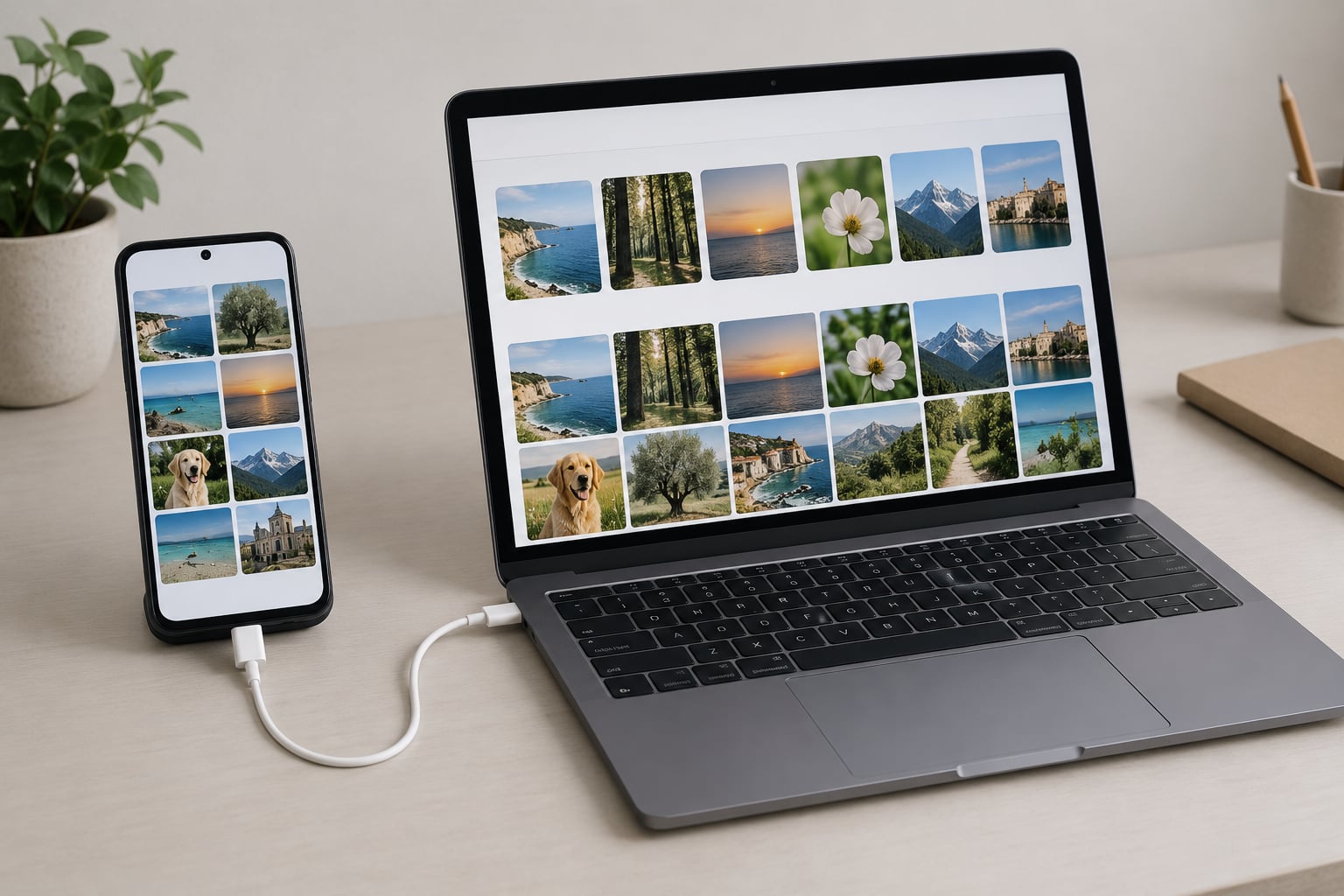
The simplest way to transfer photos from an old phone to a new one is to use the migration tool built into your new phone’s setup screen. Which tool you use depends on what the old phone runs: Google Photos and Smart Switch handle Android, iCloud and Quick Start handle iPhone, and both can move a whole camera roll in one pass.
Before you start, back up the originals and check free storage on the new phone. Whole-library transfers are slow enough that a half-charged battery can quietly interrupt them, and the step everyone skips is confirming the photos actually arrived before the old phone gets wiped.
Table of Contents›
- What You Need
- Step-by-Step: How to Transfer Photos From an Old Phone to a New One
- Transfer Photos Between Android Phones
- Transfer Photos From iPhone to Android
- Transfer Photos From Android to iPhone
- Transfer Photos Between Two iPhones
- Use a USB Cable or Computer as a Backup
- Use Bluetooth, Email, or Messaging for a Small Batch
- Verify the Transfer and Keep a Backup
- Common Mistakes
- Frequently Asked Questions
- Can I transfer photos from an iPhone to an Android phone?
- Can I transfer photos from an Android phone to an iPhone?
- Will transferring photos to a new phone reduce their quality?
- Can I transfer photos without Wi-Fi?
- How do I move only some photos to my new phone?
- What do I do if the photo transfer stops partway through?
- Conclusion
What You Need
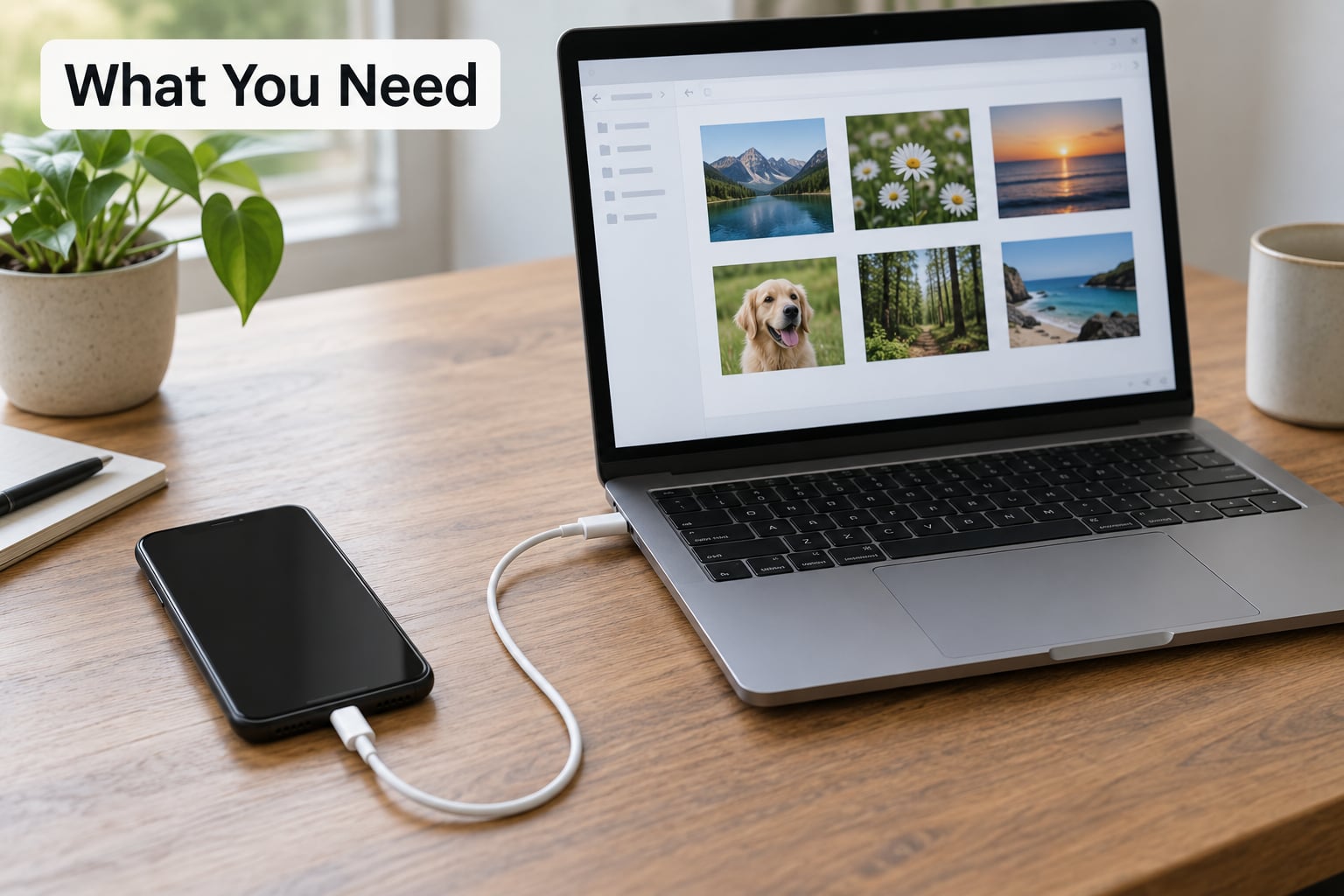
Both phones, charged above 50 percent and plugged in if you have the option. A large library can take 30 minutes or more, and phones get warm and throttle themselves when they run low on power.
A working backup of the originals. Google Photos or iCloud both do this if the account has room; otherwise copying the folder to a computer is your backup. This is the step that makes everything else recoverable, and it takes five minutes.
Enough free storage on the new phone, plus headroom. A transfer that fills the phone completely can fail near the end. Check Settings, then Storage, and confirm there is roughly 1.5 times the size of your library free.
The same account credentials you use for photos. For cross-platform moves, that usually means a Google account on the new phone and, for iCloud users, an Apple account you can sign into.
The old phone, kept switched on and untouched until you have verified the transfer. Some transfers need the old phone later to re-pair or re-download.
Step-by-Step: How to Transfer Photos From an Old Phone to a New One
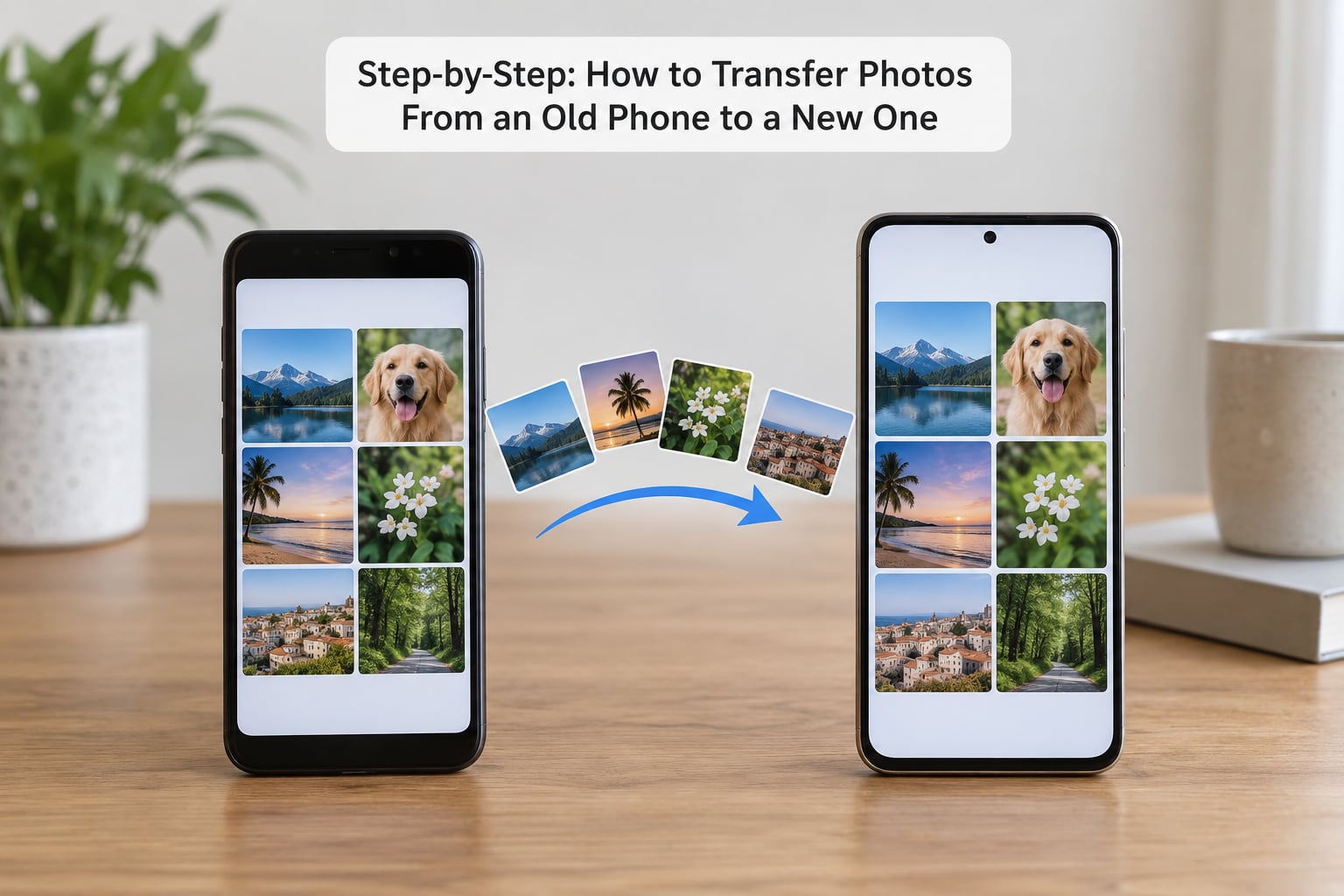
The simplest choice depends on which platforms the old and new phones run. Same brand and same platform is the easy path; switching iPhone to Android or Android to iPhone takes one extra decision about whether you transfer during setup or afterwards.
- Back up the photos on the old phone to Google Photos or iCloud, or copy them to a computer.
- Check that the new phone has more free storage than the library size.
- Charge both phones and connect them to Wi-Fi.
- Start the new phone’s setup and choose the migration option when it appears, or restore from a cloud backup after setup.
- Select photos and videos, start the transfer, and leave both phones alone until it finishes.
- Confirm photo count, dates, and albums on the new phone before erasing anything.
That order matters. Most people try the transfer first and discover halfway through that they have no idea how many photos they actually have.
Transfer Photos Between Android Phones
On Android, the built-in setup migration is the fastest route. Start the new phone’s setup, tap Set up using another device or Transfer data, then scan the QR code or code shown on the old phone with the new phone’s camera. Both phones join the same Wi-Fi network and transfer directly.
Samsung phones have a second option in Smart Switch, installed from the Galaxy Store on both devices. Plug in a USB-C to USB-C cable and it copies photos, contacts, messages and apps; a 64 GB library typically completes in 20 to 30 minutes over the cable.
For a smaller batch after setup, Quick Share (called Nearby Share on many older Android models) works over Wi-Fi Direct. Open the photo, tap Share, pick Quick Share, select the receiving device, and accept on the other phone.
Two things catch people here. Album folders often do not come across even when every photo does, because the albums live in the gallery app rather than in the files. And cloud restores can finish while the gallery is still indexing, so an empty-looking gallery right after setup does not mean the photos failed.
Transfer Photos From iPhone to Android
There are two genuinely different jobs here: moving the whole library, or sending a few specific photos. For the whole library, back up the iPhone to iCloud first, then sign in to that Apple account on iCloud.com, select the photos, and download them to a computer. From the computer you move them to the Android phone by cable or Google Photos upload.
A shorter route for recent transfers: on the iPhone, Settings, Photos, then Transfer to Android or New phone. That hands your photos, contacts and some messages to Google’s transfer, which you complete over Wi-Fi.
The QR-code pairing in recent Android versions moves a full library directly from iCloud to Google Photos during setup, without the computer step. It needs iCloud Photos turned on and enough time for a large library to download.
Sending individual photos is simpler and lossless: open the photo, tap Share, choose any messaging or email app, and send it as an attachment rather than as an inline image. Inline is where compression happens.
On quality: anything sent as an attachment keeps its original file. Anything sent through a chat app’s photo picker, or through most email apps, gets re-encoded to fit a smaller limit. If a photo is going on a print, use the attachment route.
Transfer Photos From Android to iPhone
Apple’s Move to iOS app is the official tool, and the main catch is timing: it only works while the iPhone is still in setup. Once setup finishes, Move to iOS is no longer offered, and getting it back usually means erasing the iPhone and starting over.
So if you know an Android-to-iPhone switch is happening, decide before you finish setup. Put the iPhone on charge, tap Hello, then Set Up Manually, and follow the prompts to Choose Data Transfer, Move Data from Android. Enter the code the app shows, connect to Wi-Fi, and select Photos and Videos.
If setup is already done, Google Photos is the cleanest route. Back up on the Android phone, sign in to the same Google account on the iPhone, open Google Photos, and the library restores. Leave the app open until it finishes downloading, because iOS suspends background activity, and an interrupted restore can look like a completed one.
Check your iCloud storage before you start a full iCloud Photos sync. A library larger than your free iCloud space will not upload, and Apple will tell you at the end rather than halfway through.
The computer route also works: copy the DCIM folder from the Android phone to a Mac or PC, then import it into Photos on the iPhone through iCloud Photos or Finder. It is the slowest option but it never touches the internet.
Transfer Photos Between Two iPhones
Two iPhones have the smoothest paths of any pairing. Quick Start runs during setup: start the new iPhone, hold the old iPhone’s camera over the animated pattern on screen, enter the old passcode, and choose what to transfer.
iCloud Photos is the alternative. On both phones, go to Settings, Photos, then iCloud Photos, and turn it on. The new phone downloads the full library from Apple’s servers rather than copying from the old device.
The passcode step in Quick Start is not a scam prompt. People skip it because they assume it is a social-engineering trick, and the transfer stalls until they go back and enter it.
If you would rather go through a computer, macOS Finder replaced iTunes for iPhone management on recent versions of macOS, while older Macs still use iTunes and Windows uses iTunes. You drag from the Photos tab onto the library or the device. Use one route or the other, not both: running Quick Start and Finder over the same library is the usual cause of duplicate photos.
Leave the iPhone on Wi-Fi and power until syncing reports Complete. A library with tens of thousands of items can take most of a day to finish downloading from iCloud.
Use a USB Cable or Computer as a Backup
The cable route is the one that never surprises you on quality, and it produces a copy you keep even after the transfer. It is also the only good option for very large libraries or a bad Wi-Fi connection.
Android to computer: connect the phone with a USB-C to USB-C cable, unlock the phone, and pull down the notification shade. Tap the USB charging notification and choose File Transfer or MTP. If you skip this, the computer connects but shows an empty folder, which is the single most common complaint in transfer threads.
Then open the DCIM folder. On Windows it appears under This PC, then your phone, then Internal shared storage, then DCIM, then Camera. On macOS, use Android File Transfer or a file manager app, and the same DCIM and Camera path appears.
iPhone to computer: unlock and trust the computer when prompted. On a Mac with recent macOS, open Finder and pick the iPhone under Locations; on Windows or an older Mac, open iTunes. Under the Photos tab you can copy the library straight to your computer.
Drag the Camera or DCIM folder to your desktop, not individual files. On Windows, eject the phone from This PC before unplugging; on macOS, drag the device to the Trash first. Pulling the cable while a copy is running is how partial folders happen.
Then move the folder to the new phone by its own cable, or upload it to Google Photos and let it restore.
Use Bluetooth, Email, or Messaging for a Small Batch
For ten photos, not ten thousand, sharing beats every other method. Bluetooth pairing, AirDrop on Apple devices, Quick Share on Android, email, and messaging apps all work, and none of them need a computer.
Bluetooth is the weakest of the bunch. File sizes are small in practice, the pairing steps are fiddly, and the transfer often stalls on a large video. Treat it as fine for a handful of JPEGs and nothing more.
Email and messaging apps impose size limits, so a large photo gets compressed or refused. When that happens, send the file as an attachment rather than an inline image, or use a cloud link from Google Photos or iCloud instead.
The detail people miss: the person on the receiving end has to open the photo and save it to their camera roll. A preview in the chat window is not a transfer. Ask them to check their gallery and say whether it is there.
Verify the Transfer and Keep a Backup
Treat the old phone as the backup until you have confirmed the new library. Wiping early is the one irreversible step in this whole process.
Compare counts first. Scroll to the oldest photo on each phone, write the date down, then open the newest. If the old phone has a photo from 2019 that the new one does not, you have your answer before anything else.
Then open a few photos at random. Check that they are not previews, that edits are intact, and that the dates are right. Photos can arrive with today’s date if they were moved as files rather than synced from a backup.
Look for videos too. A photo transfer can succeed while videos were skipped, because people deselect that folder without noticing.
On format, iPhones shoot HEIC and Androids shoot HEIC or JPEG, so a few HEIC files showing up on an Android phone is normal. Videos arrive as MOV or MP4. If you see a file you cannot open, open it from the Photos app first to trigger a format conversion.
One more check that pays off: whether your albums came across. Photos migrate as files and albums are often rebuilt empty. If yours did not move, that is a folder-structure problem, not a lost-photo problem.
Wait about a week before you factory-reset or trade in the old phone. Cloud restores keep running in the background and surface problems late, and a week of overlap costs you nothing.
Common Mistakes
Photos arrived but the gallery looks empty. The files are usually already there while the gallery app is still indexing them. Open My Files or internal storage, then DCIM, then Camera, and confirm the photos exist in the folder. Leave them alone and give the gallery a while; re-copying usually makes the duplication worse.
The computer sees the phone but no photos. You are in charging mode instead of File Transfer mode. Change the USB setting in the notification shade and unplug and reconnect.
Move to iOS or Quick Start disappeared. Both only exist during setup. For Android to iPhone after the fact, use Google Photos instead of erasing the iPhone you just configured. For iPhone to iPhone, use iCloud Photos or Finder.
Everything transferred twice. Two methods ran on the same library, usually Quick Start plus iCloud Photos, or a cable copy plus a cloud restore. Delete one set of duplicates from the album view, then check the file count again.
The transfer stopped halfway. Usually a charging phone, a weak Wi-Fi signal, or too little free space on the destination. Plug both in, move the phone that lost connection to a better signal, and restart the transfer rather than resuming it.
The photos look blurry or smaller than before. They went through a messaging app, email inline view, or a compressed backup setting. In Google Photos, open the backup settings and switch Saving mode to Original quality, then re-run the transfer from the originals.
The old phone was reset before the check. Nothing can be pulled from it now. Restore the most recent backup to any device and start from there.
A few habits make the next upgrade smoother. Keep both phones on Wi-Fi and power until every device reports complete. Choose original quality rather than storage saver if the photos matter. Check permissions before you assume a transfer failed, because a restricted photo library looks like missing photos on some phones. And if the old phone still holds private images, wipe it properly after you have verified the copy rather than just deleting the album, which can leave files recoverable from backups.
Frequently Asked Questions
Can I transfer photos from an iPhone to an Android phone?
Yes. The whole library moves through Google Photos, iCloud.com, or a computer in the middle. Back up the iPhone to iCloud, sign in to iCloud.com on a computer, download the library, then upload it to the new phone. Recent Android versions also offer a direct switch that pairs the iPhone with the setup screen. Individual photos can simply be sent as file attachments.
Can I transfer photos from an Android phone to an iPhone?
Yes. Apple’s Move to iOS app moves photos, contacts and messages during iPhone setup, which is the point most people miss. After setup, sign in to the same Google account on the iPhone and open Google Photos to restore from backup. A USB cable and a computer also work as a manual copy. Leave the app open until the download finishes.
Will transferring photos to a new phone reduce their quality?
Not if you use the right route. Setup migration tools, a USB cable, and Google Photos in original quality mode copy files without re-encoding. Messaging apps, email inline previews, and social apps compress images to shrink them. Anything sent as a file attachment keeps its full resolution, so check that setting if the photos are going on a print or into editing work.
Can I transfer photos without Wi-Fi?
Yes, with a USB cable, which is also the better choice for very large libraries. Connect both phones or connect the old phone to a computer and copy the DCIM and Camera folder across. Without Wi-Fi you lose setup migration tools, Google Photos backup, and iCloud Photos, all of which rely on it. Keep the cable transfer short of a full library as your only route unless you are prepared to wait.
How do I move only some photos to my new phone?
Open the album, tap the photos you want, then Share. Sending them as file attachments through email or a messaging app keeps full quality but caps the count and size. Google Photos lets you download a selection to the new phone or share selected items with a link. For larger selections, a cable copy lets you drag a whole folder or a filtered set instead.
What do I do if the photo transfer stops partway through?
Plug both phones into power, move them closer to the router, and free up storage on the destination before trying again. Interrupted cloud restores can leave the library partially downloaded, so open Google Photos or iCloud Photos and let it resume to completion. Do not delete the partial copy first, and keep the old phone untouched until the count on both sides matches.
Conclusion
Same platform means the setup tool, and that is your best option. Cross-platform means Google Photos, unless you are still inside iPhone setup, where Move to iOS and Quick Start do a better job of moving everything at once.
Start by backing up the originals and confirming free storage on the new phone. Finish by comparing counts and dates on both phones, then wipe the old one. Upgraded in 2026 or planning to next year, the sequence does not change: back up, transfer, verify, erase.