The fastest way to get a handle on your week is to learn how to use a phone calendar to plan your week, treating the calendar app already sitting on your phone as a schedule you build on purpose rather than a log of appointments other people sent you. Open the week view, add every fixed commitment first, then place your three biggest priorities and a block or two of quiet time in what is left. Ten minutes at the end of the week is enough to keep it honest.
Most people never get past the first stage. They book meetings, accept invites, and let the week happen to them. The change is small: the same app, used deliberately, with colours that tell you where the hours went.
The short version, in six steps:
- Switch the calendar app to week view and read the week you are actually planning, not the month grid.
- Add every fixed commitment first: school runs, shifts, appointments, classes, deliveries.
- Turn anything that repeats into a recurring event so you set it up once instead of eight times.
- Give each calendar its own colour, then check the week at a glance to see the real shape of your time.
- Place your three priorities as timed blocks in the empty space, with a ten-minute buffer around each one.
- Review the finished week on Friday and move anything that did not happen into next week.
Table of Contents›
- What You Need to Plan Your Week on Your Phone
- Calendar, task app, or both: which layer owns what
- Your need, and the feature that handles it
- Step-by-Step: How to Use a Phone Calendar to Plan Your Week
- Open the Correct Week and Check Existing Commitments
- Add Fixed Events and Recurring Commitments
- Turn Weekly Priorities Into Calendar Time
- Block Focus Time and Personal Margins
- Set Reminders and Review the Week
- Common Mistakes: How to Use a Phone Calendar to Plan Your Week Without Overbooking
- A Simple Weekly Planning Routine
- Frequently Asked Questions
- What is the easiest way to plan a week on a phone calendar?
- How do I add a recurring event to Apple Calendar or Google Calendar?
- Should I use one calendar or multiple calendars on my phone?
- How far in advance should I set calendar reminders?
- Can I sync my phone calendar with Google Calendar or Outlook?
- How do I share a weekly schedule with my family or coworkers?
- Conclusion
What You Need to Plan Your Week on Your Phone
You need three things before you start: a phone with a working calendar app, access to the commitments already in your life, and a short written list of what actually matters this week. That is the whole kit. Nobody needs a new planner app, a paper notebook, or a paid subscription.
Every iPhone ships with Apple Calendar, and every Android phone can run Google Calendar, usually already signed in with the Google account on the device. Samsung phones often have a Samsung Calendar app alongside Google Calendar, and the two can sit side by side, which is useful if one of them keeps drifting out of sync.
- The calendar app. Apple Calendar on iPhone and iPad, Google Calendar on Android and on iPhone if you prefer it. Pick one as the main home for your week so you stop checking three of them.
- Your existing commitments. School pickup, gym membership, the Tuesday standup, your partner’s shifts, the vet appointment nobody wants to move.
- Three priorities, not thirty. Write them on paper or in a notes app first. If you skip this step, you will fill the week with whatever is easiest to schedule.
- Ten honest minutes. Planning time scales. Five minutes works on a quiet week; twenty on a week with travel and exams in it.
Calendar, task app, or both: which layer owns what
Calendar apps are bad at loose tasks, and task apps are bad at time. Splitting the two is the single most common question on planning forums, and the answer is boringly simple: anything with a day and a time attached to it lives on the calendar, anything without a time lives in the task list.
A task called renew car insurance belongs in Apple Reminders or Google Tasks. A block called renew car insurance, 20 minutes belongs in the calendar, because that is the version you will actually do. If you do not like keeping two apps open, Apple Reminders can show its lists inside Apple Calendar, and Google Tasks lives in the Google Calendar app on Android.
Your need, and the feature that handles it
| What you need | Phone calendar feature | Where to find it |
|---|---|---|
| A week you can read at a glance | Week view with coloured calendars | Top-left year and month in Apple Calendar; the Day, Week, Month selector in Google Calendar |
| Routines that never get retyped | Recurring events | Repeat or Repeat: Weekly in the event editor on both apps |
| Time for real work | Timed blocks, not all-day events | Tap the time field and set a start and end, then give the event an outcome as its title |
| Nothing slipping quietly | Default alert times | Settings, then Apps, Calendar, Default Alerts on iPhone; Settings, Events, Default notifications on Android |
| Room to breathe between meetings | Buffer events | Add a 10-minute event before or after anything that needs travel or settling time |
| Fewer interruptions | Focus mode and Do Not Disturb | Settings, Focus on iPhone; Settings, Sound and vibration, Do Not Disturb on Android |
| Family logistics in one place | Shared calendars with edit rights | Share Calendar in Apple Calendar; Share with people in Google Calendar settings |
Step-by-Step: How to Use a Phone Calendar to Plan Your Week
Knowing how to use a phone calendar to plan your week comes down to six moves, and they take ten minutes once you know them. The order matters more than the effort: fixed commitments first, priorities second, focus time third, alerts last, review every week.
Open the Correct Week and Check Existing Commitments
Start in week view, because the month grid hides the gaps where planning actually happens. In Apple Calendar, tap the year in the top-left corner, choose Week from the options, then tap Done. In Google Calendar, tap the selector in the top-right that currently reads Day, then choose Week.
Swipe left and right to move between weeks until you are looking at the week you are planning. Then read it properly: which days are already full, which have holes, and where travel is going to eat time you have not accounted for.
Check where the events are coming from too. On an iPhone, tap the calendar name at the bottom of the screen to see every account and calendar feeding the view, including shared family calendars and anything synced through iCloud. In Google Calendar, open the menu, scroll down to the list of calendars, and switch off the ones you do not need to see while planning.
How do you know it worked? The header shows a single week with seven day columns, and the events you expect from your work and family accounts are there. If an event is missing, the account it lives on is probably switched off in that same list.
Add Fixed Events and Recurring Commitments
Add everything with a fixed time before you add anything you would like to do. Fixed events are the skeleton of the week, and planning priorities on top of an unfinished skeleton is guesswork.
In Apple Calendar, tap the plus button at the bottom-right, type the title, tap the date and time, then scroll down to Repeat. Pick Daily, Weekly, Monthly, or Custom if it only happens on certain weekdays, and set an end date if the routine is temporary. Repeat also lives in the quick options row at the top of the event editor in recent iOS versions.
In Google Calendar, tap the plus button, fill in the title, and tap the time field to set a start and end. Tap More options, then Repeat to choose a frequency and weekdays, and set the end date under the repeat row. Android users can long-press a field such as time or repeat and it jumps straight into edit mode.
- The school run at 8:15 on weekdays, repeated.
- A partner’s shift pattern, repeated, including the two nights you need to cover childcare.
- Standing meetings that never move, repeated weekly.
- One-off items: the dentist, the vet, the flight, the car service.
Check each one visually. A repeating event should appear on every expected date in week view, and the coloured bar along the edge should match the calendar it belongs to. If a routine is missing a day, open the event and check the weekdays under Repeat.
Turn Weekly Priorities Into Calendar Time
A priority that never reaches the calendar is a wish. The trick is naming the block after the outcome instead of the category, so the event tells you what finished looks like.
- Not Work, but Draft the Q4 client proposal, first 500 words.
- Not Admin, but Expense receipts, 15 minutes.
- Not Study, but Two past papers, timed, 90 minutes.
Estimate the duration honestly. Most people underestimate by about half, so if something usually takes forty minutes, book sixty and let the extra twenty become a buffer. Then place the block in a real gap rather than at 6am because the day is technically empty there.
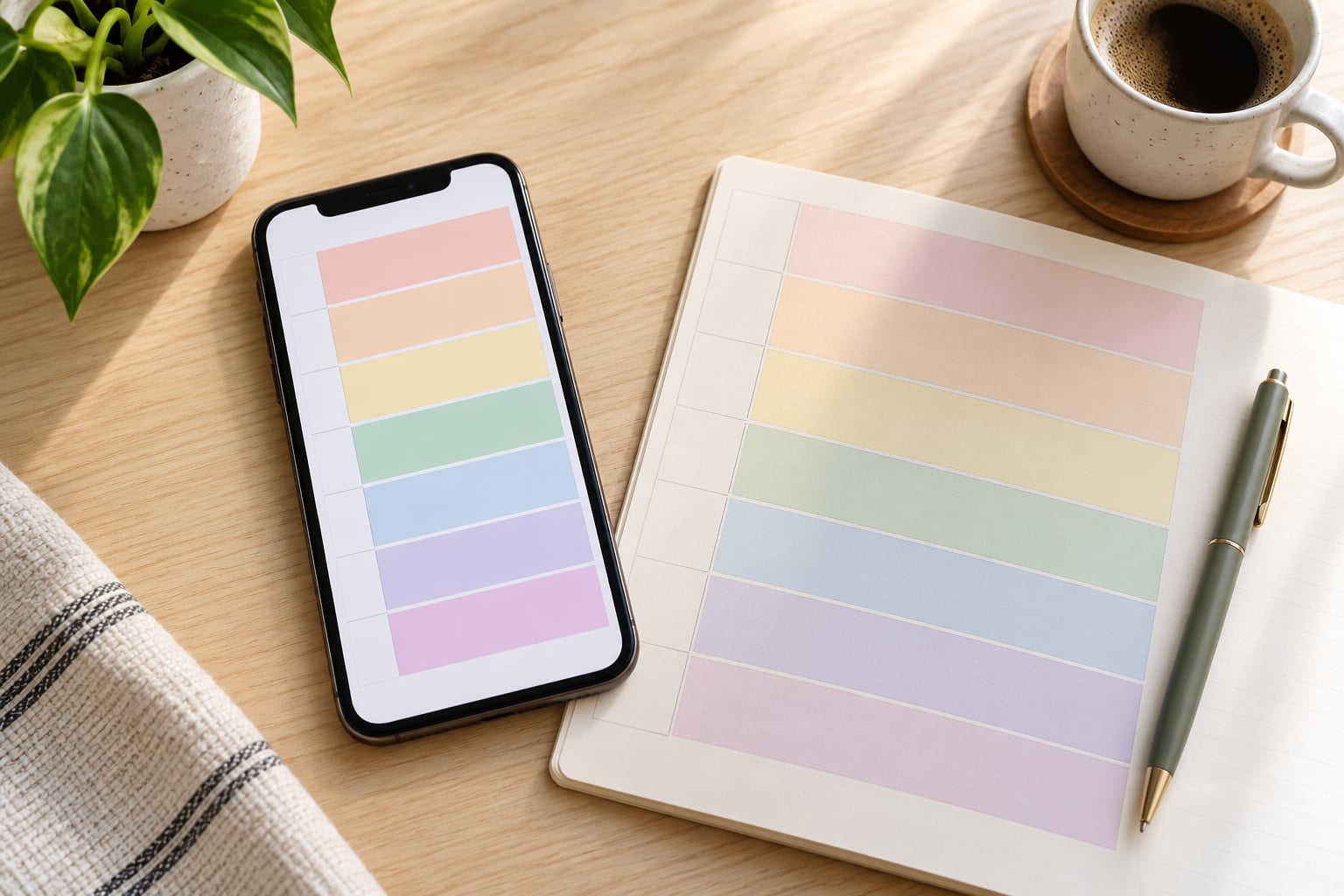
Colour coding does the rest of the work. In Apple Calendar, scroll to the calendar list at the bottom of the app, tap a calendar name, and pick a colour from the palette. In Google Calendar on Android, open the menu and long-press the calendar in the list, then choose Colour. Once three or four calendars have distinct colours, you can read a full week in two seconds and see that you have booked yourself into four hours of admin in one day.
Then do the realistic-workload check: hold your written list of three priorities against what is actually on the calendar this week. If two priorities have no block, something else is going to lose its slot. That is the moment to decline a meeting, not Friday night.
Block Focus Time and Personal Margins
Leave at least one uninterrupted block of ninety minutes on a weekday. Deep work, revision, and writing all collapse when they are sliced into fifteen-minute pieces between calls, and a phone calendar is the only place you can defend the time before someone takes it.
Add buffers as real events rather than as intentions. Ten minutes before a meeting in a different building, fifteen after a long call, half an hour after a client lunch. They look like dead space in week view, and they are the reason a realistic week stays realistic once something runs five minutes long.
Protect the edges too. Block dinner, the school pickup, exercise, and sleep as non-negotiable events with colours of their own. A week that has no personal margin in it is a week that will be blown apart by the first bad day, because there is nothing left to absorb it.
When the week gets busier than planned, cut scope rather than adding hours. Move the lowest-priority block to the following week, shorten it, or hand it over. If you do a replan, do it in one sitting: open the week, look for the first collision, resolve it, then stop. Five focused minutes beats a scattered afternoon of adjusting.
Set Reminders and Review the Week
Set alerts by distance from the event, not by habit. Two notifications work for most people: one the day before for the next morning, and one 15 to 30 minutes before anything with a start time or a location.
Apple Calendar has a global default under Settings, then Apps, Calendar, Default Alerts, where you set the alert once and every new event inherits it. On Android, open Google Calendar, tap the profile picture, choose Settings and events, then set the default notification time. Per-event alerts are in the event editor under Repeat and notifications.
Fewer alerts is the whole trick. People in planning forums describe turning notifications off entirely, then discovering the alerts were never the problem, the over-scheduled week was. A calendar that buzzes for everything is a calendar you learn to ignore.
Then review. In the calendar app, look at the finished week in week view and check four things: any event with no reminder, any two events that overlap, anything that needs travel or preparation time, and whether the personal blocks survived. If a block slipped, drag it rather than deleting it. Deleting is how good intentions disappear, and dragging keeps the week honest.
At the end of the week, spend ten minutes on the same four checks. Note what got moved and why. Most of the time it is the same event every single week, and that is the one to renegotiate.
Common Mistakes: How to Use a Phone Calendar to Plan Your Week Without Overbooking
Overloaded weeks come from a small number of repeatable errors. Each one has a fix that takes about a minute.
- Scheduling every minute. Fix: leave roughly 20 percent of the working day empty. A week with no gaps is a week that breaks on the first thing that runs long.
- One event covering five tasks. Fix: split it. Admin hides the work and cannot be rescheduled or checked off.
- Ignoring time zones. Fix: for any event more than about an hour away, add a travel buffer event, or check the time zone shown on the invite before confirming. Phones move between zones silently and every event keeps its original time.
- Duplicate events from two accounts. Fix: in Apple Calendar, tap a calendar name in the bottom list and switch off any account that is feeding duplicates into the same view. In Google Calendar, do the same with the calendar list in the side menu.
- Too many reminders. Fix: two alerts per event, no more. Delete the rest rather than muting them, so the count stays readable in the event editor.
- Planning without buffers. Fix: add a ten-minute event after anything that runs past a room, a screen, or a conversation.
- All-day events for things that take time. Fix: an all-day marker is a note, not a plan. Give real work a start and an end.
A Simple Weekly Planning Routine
Ten minutes, three stages, one fixed day. Pick the day that matches your schedule rather than copying someone else’s Sunday rule; Friday evening works well for many people, and so does Monday morning before the inbox opens.
- Reflect, three minutes. Open last week in week view. What got done, what was moved twice, and how full were the days that felt worst. Write down the one recurring event that keeps causing the friction.
- Gather, three minutes. Dump every loose task into Apple Reminders or Google Tasks. Include the ones with no date attached. This is the brain dump step, and its only job is to empty your head.
- Plan, four minutes. Choose three priorities for the week. Give each one a named block on the calendar, add the buffers, protect the personal time, and stop. The week is planned.
Here is the shape of a finished week. Copy it, change the times, and use the colours you already set.
| Time | Activity | Calendar | Colour |
|---|---|---|---|
| 8:15 | School run | Family | Blue |
| 9:00 | Draft the Q4 proposal, first 500 words | Work | Green |
| 10:30 | Team standup | Work | Green |
| 11:00 | Expense receipts | Admin | Orange |
| 12:30 | Lunch, phone away | Personal | Grey |
| 14:00 | Deep work block, no meetings | Work | Green |
| 17:30 | Gym | Personal | Grey |
| 19:30 | Dinner and bath time | Family | Blue |
On Android, pin the week to your home screen so it is visible without opening anything. Long-press the home screen, tap Widgets, find Calendar, and drag the agenda or week widget into place. On iPhone, the Calendar app icon showing the current date is already a glanceable answer, and Siri can add a block for you: say Hey Siri, schedule invoice writing Thursday at four.
On Google Calendar, ask the assistant instead: tell it to create an event on a given day and time and it will land in the calendar you choose. For anyone using Outlook work accounts, the same tap paths work, since Outlook on both platforms reads from the same synced account.
Frequently Asked Questions
What is the easiest way to plan a week on a phone calendar?
The fastest route is a fifteen-minute session on a fixed day. Look at the coming week in week view, add every fixed commitment first, choose three priorities, place each one as a timed block in the empty space, then add a ten-minute buffer around each block. Repeat the same five moves every week and the plan stays current without becoming an administrative job.
How do I add a recurring event to Apple Calendar or Google Calendar?
In Apple Calendar, tap the plus button, name the event, set the time, then tap Repeat and choose Daily, Weekly, Monthly, or Custom. Pick the weekdays it applies to and set an end date for temporary routines. In Google Calendar, tap the plus button, fill in the title and time, tap More options, then set Repeat and the notification you want before saving.
Should I use one calendar or multiple calendars on my phone?
Use separate calendars for the parts of your life you would want to see or hide separately, such as work, personal, family, and admin. Each one takes its own colour, so week view doubles as a quick read on where the hours went and lets you switch entire categories off in a single tap. Four is plenty, since more calendars make the view noisy again.
How far in advance should I set calendar reminders?
Two alerts work for most people: one the day before for anything happening the next morning, and one 15 to 30 minutes before an event with a start time or a location. Earlier alerts train you to dismiss notifications without reading them. On iPhone, set a default under Settings, then Apps, Calendar, Default Alerts, and override individual events only when they need it.
Can I sync my phone calendar with Google Calendar or Outlook?
Yes, and most people should. On iPhone, add the account under Settings, then Apps, Passwords and Accounts, and make sure Calendar is switched on so it syncs through iCloud. On Android, open Google Calendar, tap your profile picture, then Add account. Events added on either device then appear everywhere you sign into the same account, including a work Outlook account.
How do I share a weekly schedule with my family or coworkers?
In Apple Calendar, open the calendar list, swipe the calendar you want to share, tap Share Calendar, and add people by phone number or email. In Google Calendar, open Settings, choose the calendar, then Share with people. Give family members edit rights so they can add pickups and appointments, keep colleagues at view or free-busy, and put work details on a separate calendar you never share.
Conclusion
Open your calendar app, switch it to week view, and look at the week in front of you. Add the fixed commitments first, then give your three priorities a named block each, leave a buffer around them, and protect your evenings.
That is the whole method. Ten minutes to plan, ten minutes to review, and the same six moves every week. Once you know how to use a phone calendar to plan your week, treat it as a flexible tool rather than a contract, so when priorities change you drag the block instead of abandoning the plan. Last updated October 2026.