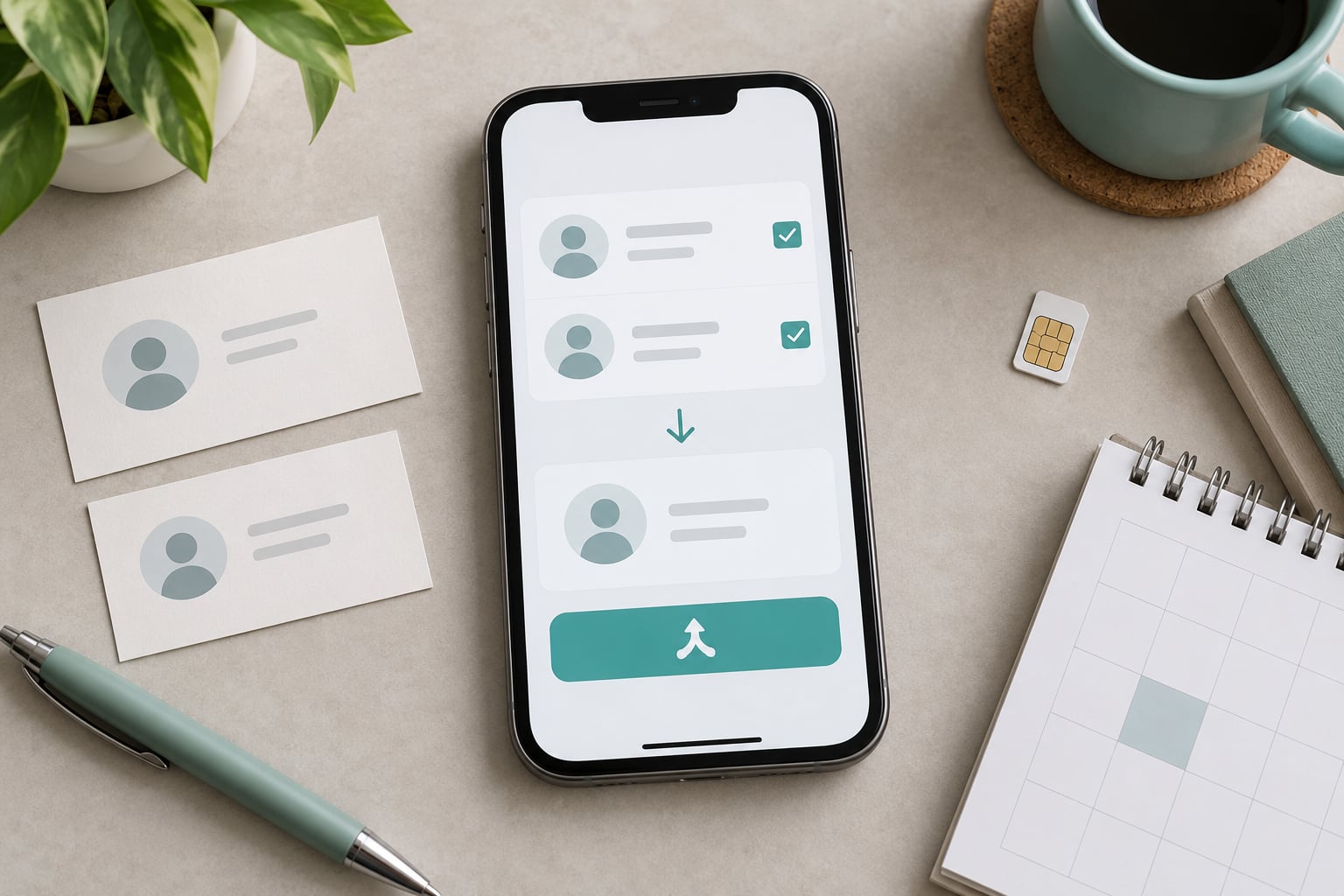
To merge duplicate contacts on Android, open the Contacts app, tap your profile or menu button, choose Fix and manage, then Merge and fix, select Merge duplicates and confirm with Merge all. Samsung phones put the same tool under Manage contacts instead. It takes about two minutes for a full list.
The catch is that the button names change with every manufacturer, and the automatic tool is deliberately conservative. It mostly matches records with identical names and identical phone numbers, so a contact saved as “John Smith” and another saved as “Jon Smith” will sit there untouched while you wait for a Merge button that never appears.
This guide covers the Google Contacts path, the Samsung variant, the manual merge for one stubborn pair, the browser version, and what to do when the tool finds nothing. Menu labels below are current for Android 14 through Android 16 and One UI 6 and later.
Table of Contents›
- What You Need
- Step-by-Step: How to Merge Duplicate Contacts on Android
- 1. Review the duplicate contact records
- 2. Open the merge command
- 3. Choose the contact details to keep
- 4. Merge and verify the combined contact
- 5. How to merge duplicate contacts on Android in bulk
- Common Mistakes
- Frequently Asked Questions
- How do I unmerge contacts on Android?
- What happens to the details when two contacts are merged?
- Why does Merge and fix not find my duplicates?
- How do I merge duplicate contacts on a Samsung Galaxy?
- What about contacts stored only on the SIM card?
- How do I stop Android contacts from duplicating again?
What You Need
Not much, honestly. What you really need is a rough idea of which copy of each contact you want to keep.
- A Google account with contacts sync switched on, if your phone uses Google Contacts. This is the default on Pixel devices and most stock Android phones.
- A Samsung account, or the Google account used by Samsung Contacts, on Galaxy devices.
- Two or three minutes of screen time for the automatic method, longer if you are merging pairs by hand.
- A decision rule for which record wins. The most complete one usually does.
Before you start, it helps to know where your duplicates actually live, because Android keeps contacts in more than one place:
- Your Google account — the store almost every Android phone reads from.
- A Samsung account — a second store that Samsung Cloud writes to independently.
- An Outlook or Exchange account — if work email is synced to the phone.
- The SIM card — a small store of numbers imported when you first set the phone up.
- The contacts app itself — Samsung Contacts and Google Contacts are different apps reading different data.
If you skip that step you will merge one pair, tap around, and find three more names a few minutes later.
Step-by-Step: How to Merge Duplicate Contacts on Android
1. Review the duplicate contact records
Open the Contacts app and tap a name that appears twice. Look at both cards before touching anything, because the merge keeps one record and folds the other into it.
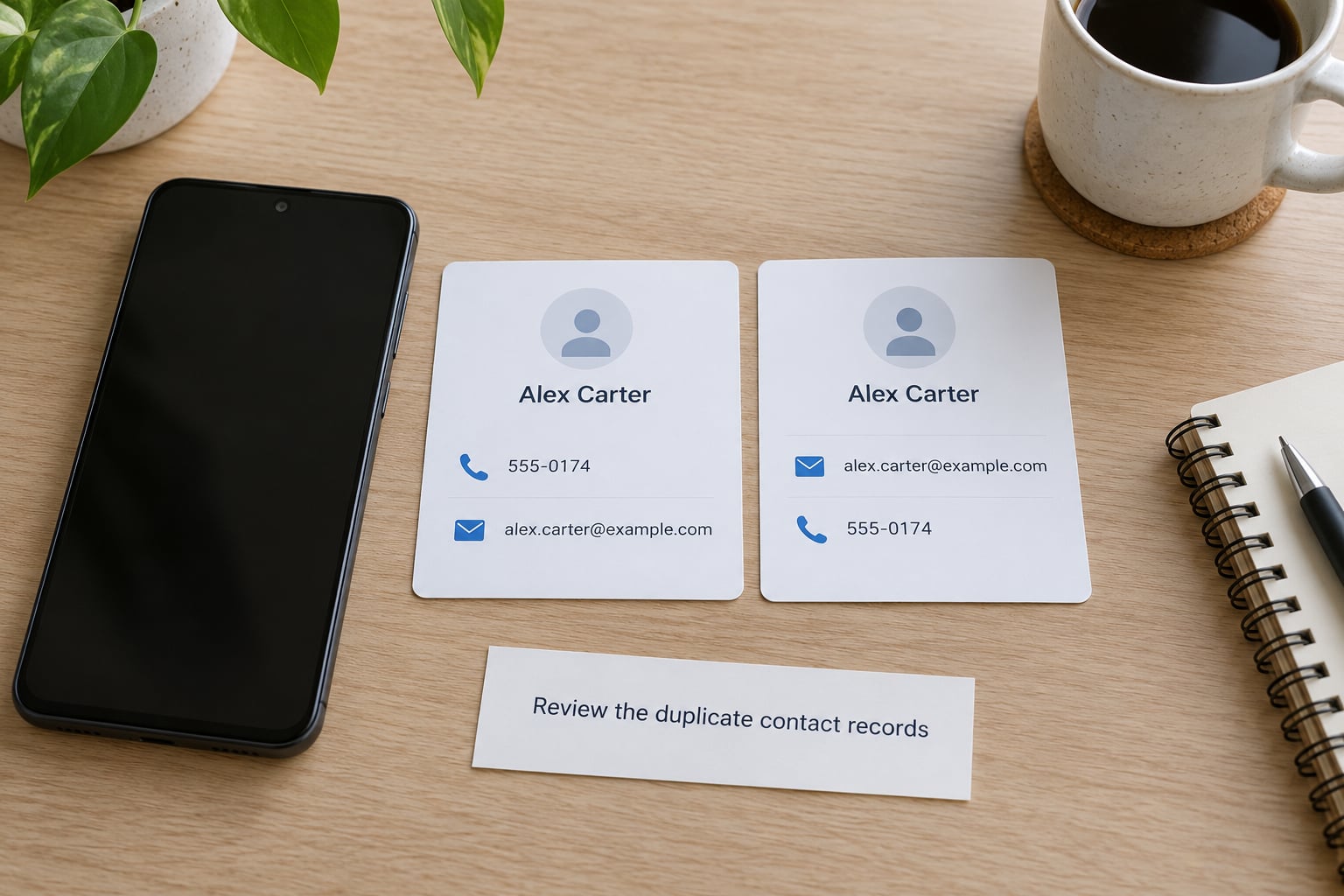
Check four things on each card:
- Name and nickname — the one with the nickname you actually recognise is usually the keeper.
- Phone numbers — count them. The record with the mobile number and the work number together beats the record with one of each.
- Email addresses — a merge keeps both, so check neither is a throwaway address.
- Notes, labels and birthday — these are the fields people lose, because they are usually on only one of the two copies.
Open each card and scroll to the bottom. The record with more fields is your survivor. If both have something the other lacks, note it down so you can add it back afterwards.
2. Open the merge command
The path depends on which contacts app your phone uses. Here is where each one puts it:
- Pixel and stock Android — Contacts app, top left avatar or three-dot menu, then Fix and manage, then Merge and fix.
- Samsung Galaxy (One UI 6 and later) — Samsung Contacts, three-dot menu, then Manage contacts, then Merge contacts.
- Xiaomi (MIUI and HyperOS) — Contacts app, bottom tab, then the settings icon, then Merge duplicates under the organiser menu.
- OnePlus (OxygenOS) — Contacts app, top right menu, then Merge contacts.
- Oppo and Realme (ColorOS, Realme UI) — Contacts app, bottom right menu, then Merge contacts.
- Motorola — Contacts app, three-line menu, then Merge duplicates under Settings.
On Google Contacts the sequence is: open Contacts, tap your profile picture or the three-dot menu, pick Fix and manage, then Merge and fix, then Merge duplicates. You land on a screen listing each suggested pair with a preview of the combined record.
On a Samsung phone it is shorter: open Contacts, tap the three-dot menu, tap Manage contacts, then Merge contacts. If the Samsung Contacts app is not installed, use the Google path above instead — the data is the same.
3. Choose the contact details to keep
Tap a suggested pair and the app shows a preview. Phone numbers, emails, addresses, notes and birthday fields from both records are combined into one card. Where the same field type has two different values, the app keeps one and hides the other behind an option to switch.
Read that preview carefully. It is the last moment before the second record stops existing as a separate entry.
Two things to watch for:
- Which name survives. Merging picks the record you were viewing, and some versions prefer the first name added. If the wrong name sticks, open the merged card and edit it directly.
- Whether a number went missing. If the preview does not show both of your numbers, tap the option to show all details before merging.
If you are being asked whether the same person is really one person, look at the profile photo, the phone numbers and any label like “work” or “dentist”. A shared name is not proof. Two different people called John Smith should stay apart.
4. Merge and verify the combined contact
Tap Merge for one pair, or Merge all to clear every suggestion at once. Then check the result instead of assuming it worked.
Open the merged contact and confirm:
- All phone numbers you wanted are still listed.
- The notes and birthday came across.
- The profile photo is the one you prefer.
- The name and nickname read correctly.
Give sync a few minutes. If contacts sync to Google, open Settings, then Accounts, then Google, tap your account, then Device contacts sync, and check the switch is on. A merge made on the phone propagates to the Google account and down to your other devices, usually within a minute or two.
If a duplicate reappears an hour later, the merge did not fail. Something else wrote that person back into the address book, which is the problem the next section deals with.
5. How to merge duplicate contacts on Android in bulk
When a list has doubled after a backup restore, one merge at a time is painful. Use the automatic tool instead.
In Google Contacts, run Fix and manage > Merge and fix > Merge duplicates. Each entry shows a suggested group and a Merge all button that clears the whole group without opening each pair. Individual suggestions can be dismissed with Dismiss, which is worth doing for anyone the tool has paired incorrectly.
On a computer the same view is bigger and easier to audit. Go to contacts.google.com, sign in with the account that syncs to your phone, click Merge contacts in the left sidebar, review the suggestions and confirm. The web view also shows contacts from other accounts in one list, which makes it the better tool when duplicates span Google and a work account.
Its limits are worth stating plainly. The suggestion engine relies heavily on exact matches, so it will usually miss records where one number is missing a country code, where a nickname replaced the legal name, or where a middle initial appears in only one copy. For those, use the manual path: open one contact, tap the three-dot menu, choose Merge, then select the second contact and tap Merge again.
Take a screenshot of any contact with notes before a bulk clean. You can restore deleted contacts for about 30 days from Google Contacts, and that safety net disappears after that window.
Common Mistakes
Deleting and re-importing contacts. This is the most repeated mistake in the forums and it makes things worse, because every import writes a fresh batch of records. One Galaxy S20 owner in an XDA thread ran four delete-and-reimport cycles and got a different duplicate count each time. Merge instead.
Merging before sync finishes. Change an address book, then immediately open a second app that reads the old cached copy, and you can end up with the merge and the un-merge fighting each other. Give sync a minute before you start.
Running two contact stores at once. When Samsung Contacts is set as the default contacts app while Google does the syncing, the two engines disagree about how many contacts exist. Someone on XDA counted 500 in Google, 518 on the device and 513 in the Samsung app — three numbers for one address book, and Merge and fix reporting no duplicates at all. Pick one app as the default and one account as the source, and the drift stops.
Ignoring SIM and Exchange copies. The tool only works on the account you are looking at. Open the contacts app’s account selector and switch between Google, Samsung, SIM and Exchange before you conclude nothing is duplicated.
Assuming the labels are universal. Fix and manage, Merge and fix and Manage contacts are three different buttons in three different apps. A Pixel guide followed word for word on a Xiaomi phone sends you nowhere.
Merging two genuinely different people. Shared names are common and the tool sometimes pairs them. Review each suggestion rather than tapping Merge all on faith, particularly for short or common names.
One habit that pays off: after a clean-up, check the count on your phone against the count at contacts.google.com. Matching counts mean you have a single source of truth, and duplicates that reappear are a sync problem rather than a merge problem.
Frequently Asked Questions
How do I unmerge contacts on Android?
Android has no unmerge button. What you can do is undo a delete or merge: open Google Contacts, tap the three-dot menu, choose Trash, find the contact, and tap Restore. Deleted and merged contacts stay in Trash for about 30 days. After that the record is gone for good, so check your Google account on the web before the window closes.
What happens to the details when two contacts are merged?
Phone numbers, email addresses, postal addresses, notes, birthday fields and labels from both records are combined into one card. Where both records hold a different value for the same field type, the app keeps one and lets you switch to the other after the merge. Nothing is thrown away permanently, because the original records go to Trash for around 30 days.
Why does Merge and fix not find my duplicates?
The suggestion engine mostly matches records with identical names and identical phone numbers, so a nickname, a middle initial or a different number format stops it matching. Duplicates living in a second account, the SIM card or a Samsung account are also invisible to it. Try merging those pairs by hand, and confirm one account is set as the default source for contacts.
How do I merge duplicate contacts on a Samsung Galaxy?
On One UI 6 and later, open Contacts, tap the three-dot menu, choose Manage contacts, then tap Merge contacts. Samsung shows a list of suggested pairs you can merge individually or all at once. If you would rather use Google tools, the same records appear in Google Contacts under Fix and manage, then Merge and fix, provided contact sync is switched on.
What about contacts stored only on the SIM card?
SIM contacts live in their own small store and cannot be merged with Google records from the Contacts app. Import them first through your contacts app, which normally happens automatically when you insert a new SIM. Once imported as Google contacts, those records become mergeable like any other. Leaving the SIM import turned on is a common reason duplicates come back.
How do I stop Android contacts from duplicating again?
Choose one account as the source of truth for contacts and turn off contact sync for the others. Check Settings, then Accounts and Account sync for every Google and Samsung account on the phone, plus any Exchange account. Also confirm your default contacts app matches the account you sync, and disable any automatic SIM import. Most recurring duplicates come from two stores writing the same person back.
Start with the automatic tool in your Contacts app, because a clean address book in two minutes is worth more than an hour of manual pairing. Then fix the account setup, since a merge without a single source of truth just buys you a few quiet days. That is how to merge duplicate contacts on Android for good rather than for one afternoon.