Dark mode saves battery, but only on screens where black pixels genuinely switch off, which means OLED and AMOLED panels. On those phones expect a modest gain, not a miracle: a Purdue University test measured roughly 3-9% under ordinary use, while Google’s own Pixel testing found much larger numbers only at maximum brightness. On LCD screens the backlight stays lit no matter what you do with the colors, so dark mode changes the look and nothing else.
That is the honest version of the answer, and it takes about five minutes per device to set up. This guide covers the exact menu paths for Android, Samsung One UI, iPhone and iPad, plus how to check whether your own screen can actually benefit.
Table of Contents›
- What You Need Before You Start
- How to Use Dark Mode to Save Battery, Step by Step
- How to Enable Dark Mode on Android to Save Battery
- How to Enable Dark Mode on iPhone and iPad to Save Battery
- Which Apps and Screens Actually Use Dark Mode
- Does Dark Mode Really Save Battery?
- How to Get the Most Battery Savings From Dark Mode
- Common Mistakes to Skip
- Frequently Asked Questions
- Does dark mode really save battery?
- Does dark mode save battery on an LCD screen?
- How much battery does dark mode save?
- Does dark mode change the colors of my photos and videos?
- Is dark mode better than battery saver mode?
- Conclusion
What You Need Before You Start
You need a phone or tablet first, obviously. The part that matters is knowing which kind of display you have, because it decides whether any of this is worth your time.
OLED and AMOLED screens light each pixel individually, so a pixel showing black is switched off entirely and draws nothing. LCD and IPS LCD screens put a lit backlight behind a layer of liquid crystal, so a black pixel still gets flooded with light. Forums like MacRumors and r/PocoPhones come back to this same point constantly: it is the panel, not the phone brand.
You also need to pick how you want dark mode triggered. Manual means you flip it yourself. Automatic means the system switches by time of day. Scheduled gives you a custom window, which on iOS is tied to sunrise and sunset in your location rather than fixed clock times.
Automatic is the one most people want. It pairs the dark theme with the hours when you are not squinting at a bright screen, which is also when the battery benefit is easiest to get.
How to Use Dark Mode to Save Battery, Step by Step
Six steps, in order. Do the first one even if you skip the rest, because it tells you whether to expect anything at all.
- Check whether your display is OLED or LCD.
- Turn on your system-wide dark mode setting.
- Choose automatic or scheduled activation instead of manual.
- Switch on dark mode inside the apps you use most.
- Set a dark wallpaper so your home screen is not a white slab.
- Compare battery use over a few days at similar brightness.
How to Enable Dark Mode on Android to Save Battery
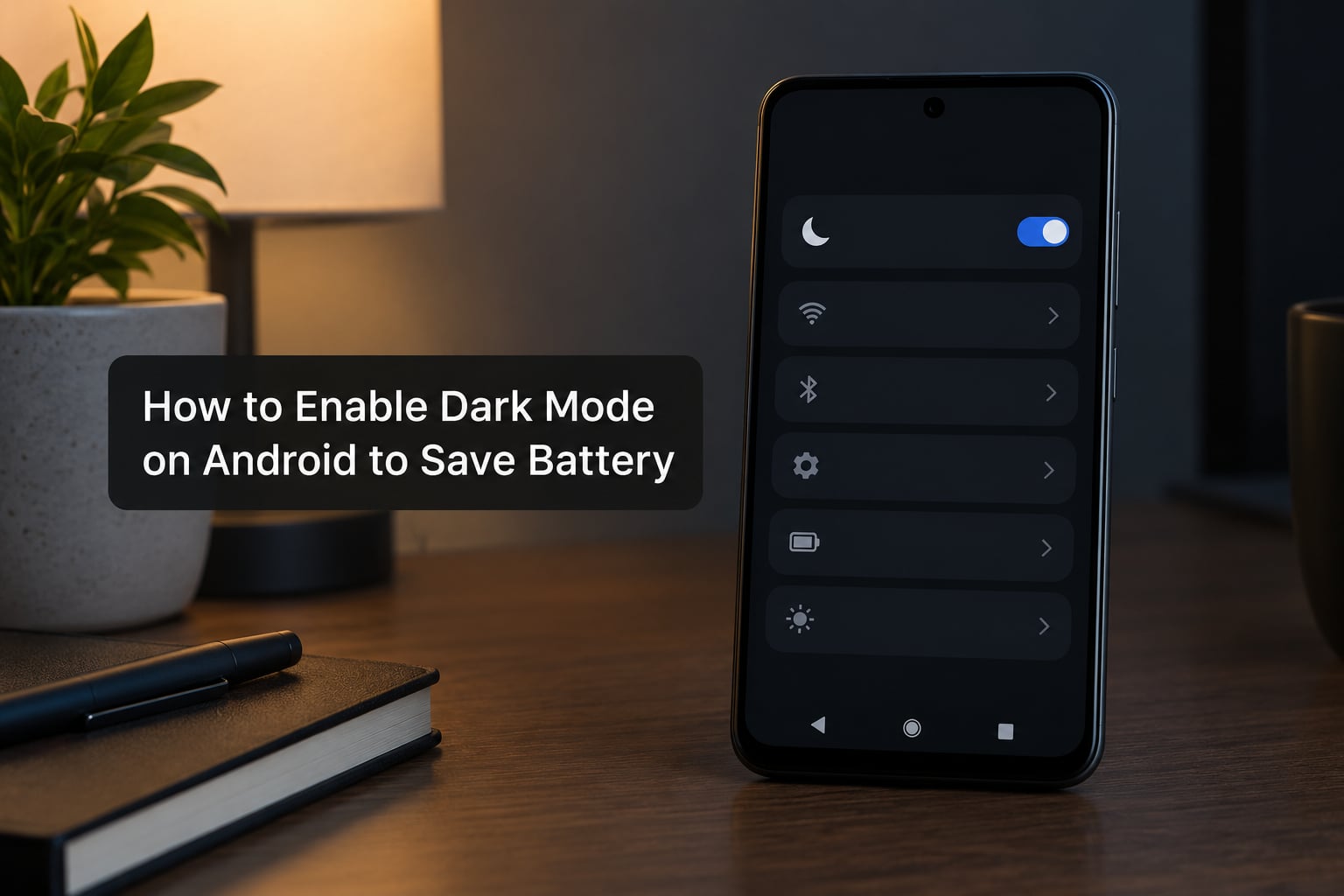
On stock Android and Google Pixel phones, open Settings, tap Display, then tap Dark theme and switch it on. That is the whole path on current versions. On slightly older releases the same toggle sits under Settings, Display, Advanced, and you may need Developer options to force the dark theme into apps that ignore it.
Samsung runs a different menu. Go to Settings, Display, then Dark mode settings. From there you get the main switch plus extra controls: how dark the dark theme goes, whether the wallpaper and icons follow the theme, and a schedule with sunrise and sunset options.
Versions move these around. If you do not see Dark theme under Display, search Settings for dark mode and the phone will take you straight to it. The quickest way to confirm it worked is to pull down the notification shade: a light shade means dark mode is off.
How to Enable Dark Mode on iPhone and iPad to Save Battery
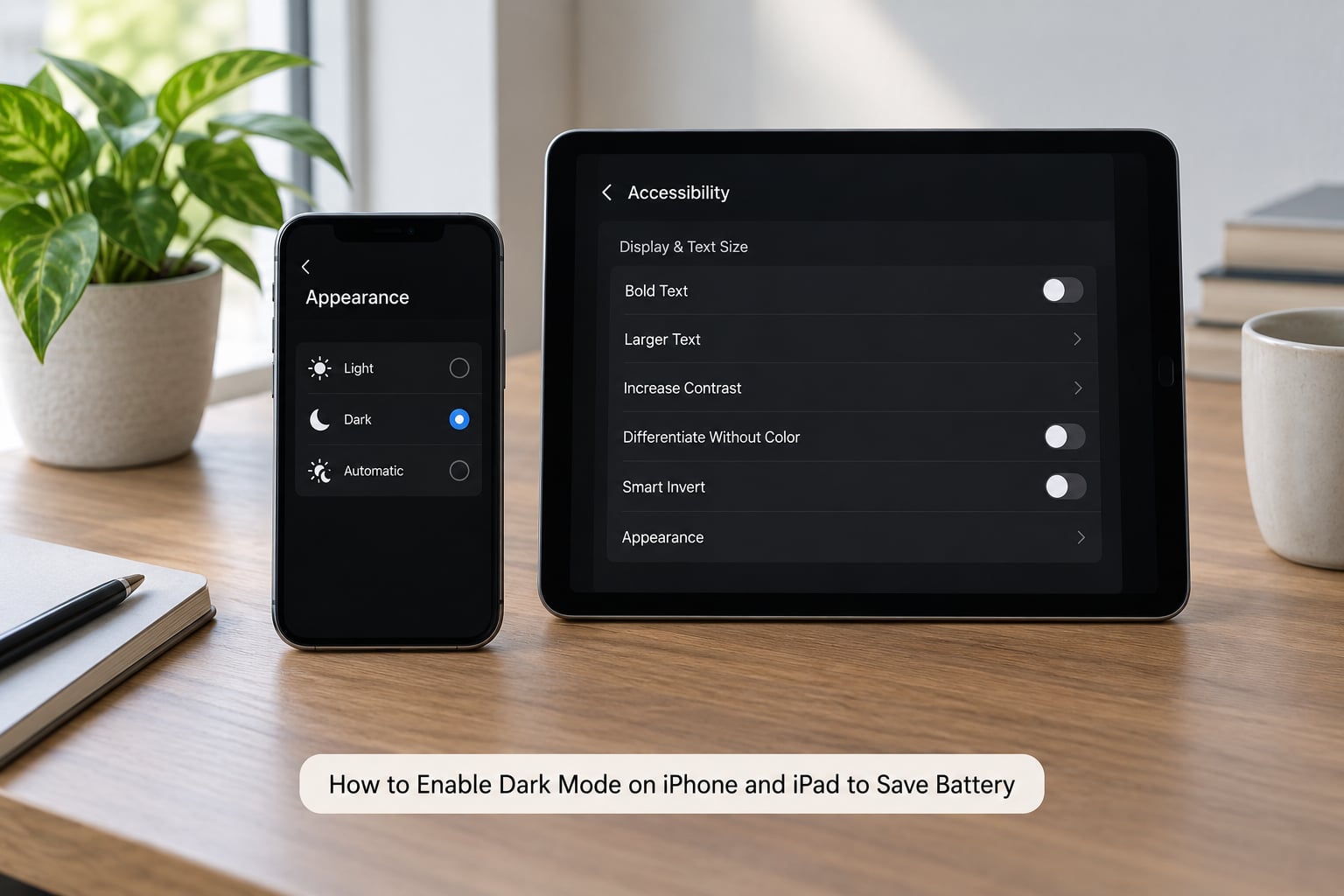
Open Settings, tap Display and Brightness, and scroll to the Appearance row. Tap it and you get Light, Dark, or Automatic. Choosing Automatic switches the theme between sunrise and sunset based on your location, which is why dark mode sometimes turns itself on when you did not expect it.
On iPad the path is the same, and both iPad and iPhone support dark mode for the system and most built-in apps. Older iPads with LCD panels will show the option and save nothing, same as an iPhone 8 or earlier.
To turn dark mode off, go back to that same Appearance row and choose Light. To check the current state, pull Control Center down: the Sun and Moon icon shows which appearance is active right now.
All of this takes under two minutes on 2026-era phones, and the setting survives updates.
Which Apps and Screens Actually Use Dark Mode
System dark mode is a request, not an order. Apps that support it follow the system setting, apps that do not stay exactly as they were.
Browsers, messaging apps, email clients and most social apps support dark mode well. YouTube, WhatsApp, Instagram, Reddit and X all have their own appearance setting inside the app, and those settings can override the system one in either direction.
A few notes worth knowing. Videos and photos look the same either way, since those are content rather than interface. Web pages in Chrome or Safari follow the system theme but some sites ship light-only styling. And a single stubborn white screen inside an otherwise dark app undoes much of the benefit, which is why the app-level toggles matter.
Does Dark Mode Really Save Battery?
On OLED it is a real mechanism, not a marketing line. Every pixel that renders true black is an unlit pixel, and unlit pixels do not consume power. A dark interface simply has more of them.
On LCD there is no such mechanism. The backlight runs at the same level whether the screen shows a white document or a black one. Dark mode there is purely cosmetic.
The confusing part is why you have seen wildly different numbers. Purdue’s testing found an average saving of about 3-9%, which is what you should expect from normal indoor use. Google presented much larger figures at its Android Dev Summit, but measured at maximum brightness on a Pixel where the display is already pulling serious power. Higher brightness means more to save, so the percentage looks dramatic. Same feature, different conditions.
Refresh rate and brightness complicate it further. A display running at 120Hz draws more than one at 60Hz regardless of theme, and turning brightness down has a bigger effect on most phones than the color scheme does.
How to Get the Most Battery Savings From Dark Mode
Dark mode is one lever, not the whole battery strategy. These are the ones that stack.
- Use automatic scheduling so dark mode is on during the hours you are indoors reading and scrolling, not just after dark.
- Pair it with Battery Saver on Android or Low Power Mode on iPhone. Battery Saver lives under Settings, Battery on both platforms and throttles background activity.
- Keep brightness moderate and leave auto-brightness on. This lever is larger than the theme.
- Set a dark wallpaper so the home screen stops drawing full-brightness pixels every time you pick up the phone.
- Turn on dark mode inside your top apps, since those are where you spend the time.
- Check the battery report. On iPhone open Settings, Battery, and tap the last 24 hours chart. On Android go to Settings, Battery, Battery usage to see which apps consumed the most.
- Lower the refresh rate if your phone offers a 60Hz option and you are not gaming.
Give it three to four days of ordinary use before judging the result. One evening is noise.
Common Mistakes to Skip
Expecting a big win on an LCD phone. If you have not confirmed your panel type, do that first. Otherwise you will conclude dark mode is broken when it never had anything to save.
Running brightness at maximum. Dark mode helps most at high brightness, which is exactly the setting that drains the battery fastest. Sliding brightness down to around half usually beats any theme change.
Theming only the system. System dark mode plus a light-themed YouTube is roughly half a dark screen, and half a saving.
Leaving it on Manual. Manual means you forget. Automatic is the setting that actually stays dark when it should.
Treating dark mode as a replacement for Battery Saver. They do different jobs. One changes how the display draws power, the other limits background work. You want both.
Worrying it hurts your eyes or your panel. In a dark room a light theme is often the harder one to read. Leaving dark mode on permanently is fine for most people, and it does not cause burn-in.
Frequently Asked Questions
Does dark mode really save battery?
Yes, on OLED and AMOLED screens only. Each pixel lights itself, so black pixels switch off and stop drawing power. A Purdue University test measured roughly 3-9% under everyday conditions. On LCD screens the backlight stays lit, so dark mode saves nothing and only changes appearance.
Does dark mode save battery on an LCD screen?
Essentially no. LCD and IPS LCD panels use a backlight that runs constantly behind the pixel layer, so the color of what is on screen does not change how much power the display uses. Dark mode on an LCD phone is a comfort and readability choice. If you want real savings there, lower the brightness and use Battery Saver instead.
How much battery does dark mode save?
Plan on around 3-9% over a normal day on an OLED phone, based on Purdue University testing. Bigger numbers circulate online, usually because they were measured at maximum brightness where the display is already drawing a lot of power. On LCD devices expect no measurable difference at all.
Does dark mode change the colors of my photos and videos?
No. Photos, videos and artwork are content, so they render exactly as they were captured regardless of the theme. Only interface elements change, meaning backgrounds, text and menus. Some apps also offer a dimmed or tinted appearance that stays dark but softens contrast, which looks less harsh in a dark room.
Is dark mode better than battery saver mode?
Neither replaces the other. Dark mode reduces how much power the display draws, while Battery Saver on Android and Low Power Mode on iPhone limit background activity such as syncing and notifications. Each is modest on its own. Running both together gives a noticeably better result than either one alone.
Conclusion
Start by confirming your phone has an OLED screen. If it does, turn on automatic dark mode right now and turn on dark mode inside the two apps you use most, then leave brightness at auto and let Battery Saver handle the rest.
Give it a few days, then open your battery report and see what the numbers actually say. On an LCD phone, skip the theme entirely and put that effort into brightness and background activity, where the savings are real.