Your phone already tracks this for you, so there is nothing to install. To find out which app is draining your battery, open the built-in battery screen — Settings > Battery > Battery usage on Android, or Settings > Battery > Battery usage and Level on iPhone — and sort the list by percentage. Then test the top app before you act on it.
That last part matters more than it sounds. The built-in list is an estimate over a rolling window, so one bad afternoon can put an innocent app at the top. Updated for 2026, the steps below cover Android, iPhone, iPad, Samsung and the manufacturer skins that bury the same screen one level deeper, plus how to tell real drain from a normal screen-on hour.
Table of Contents›
- What You Need
- Step-by-Step
- Check Android Battery Usage
- Review Battery Use on iPhone
- Look for a Background Battery Drain
- Test Whether the App Is Causing the Drain
- Fix and Prevent Battery Drain
- Common Mistakes to Skip
- Common Mistakes
- Frequently Asked Questions
- Which app drains the most battery on my phone?
- How can I tell whether an app is using battery in the background?
- Does the highest battery usage percentage mean an app is broken?
- Should I use a third-party app to monitor battery drain?
- Why does my battery drain faster after I install an app?
- When should I uninstall an app because of battery drain?
What You Need
Good news: you need your phone and about two minutes. No downloads, no cables, no root.
Every current Android phone ships a battery screen under Settings, and every iPhone has one under Settings > Battery. The labels differ slightly between manufacturers and software versions, so if you cannot see the exact wording below, look for something close: Battery usage, Battery consumption, Battery manager, or Battery usage and Level.
Two other things worth knowing before you start. Menu names change between regions and carrier builds, and the figures you will see are estimates rather than laboratory readings. Keeping both in mind saves you from chasing a rounding error.
Step-by-Step
Work through these in order. Rushing the first two steps is how people end up deleting an app that was innocent.
Check Android Battery Usage
On Android, open Settings, tap Battery, then tap Battery usage. The list is already sorted by share of total drain.
Read the time window at the top of the screen first. Most phones show the last 24 hours, and some let you switch to the last 10 days. A 24-hour view catches a sudden problem; the 10-day view catches a slow habit.
Tap any app in the list and you get the split that actually matters: how much was foreground use, and how much was background use. Foreground drain is you holding the phone and using it, which is normal. Background drain is the app working while you did something else, which is where the problems hide.
Samsung phones bury this one level deeper. Go to Settings > Device Care > Battery, tap the three-dot menu or the usage detail option, and you reach the same per-app list. One UI shows only Screen On Time on the Device Care screen by itself, so tap through to the usage detail rather than judging from the summary.
Pixel, Xiaomi, OnePlus and other skins use their own wording for the same screen — Battery usage, Battery manager, Battery > Battery optimisation on some versions. The folder is always Battery.
Review Battery Use on iPhone
On iPhone and iPad, open Settings, tap Battery, then tap Battery usage and Level near the top of that screen.
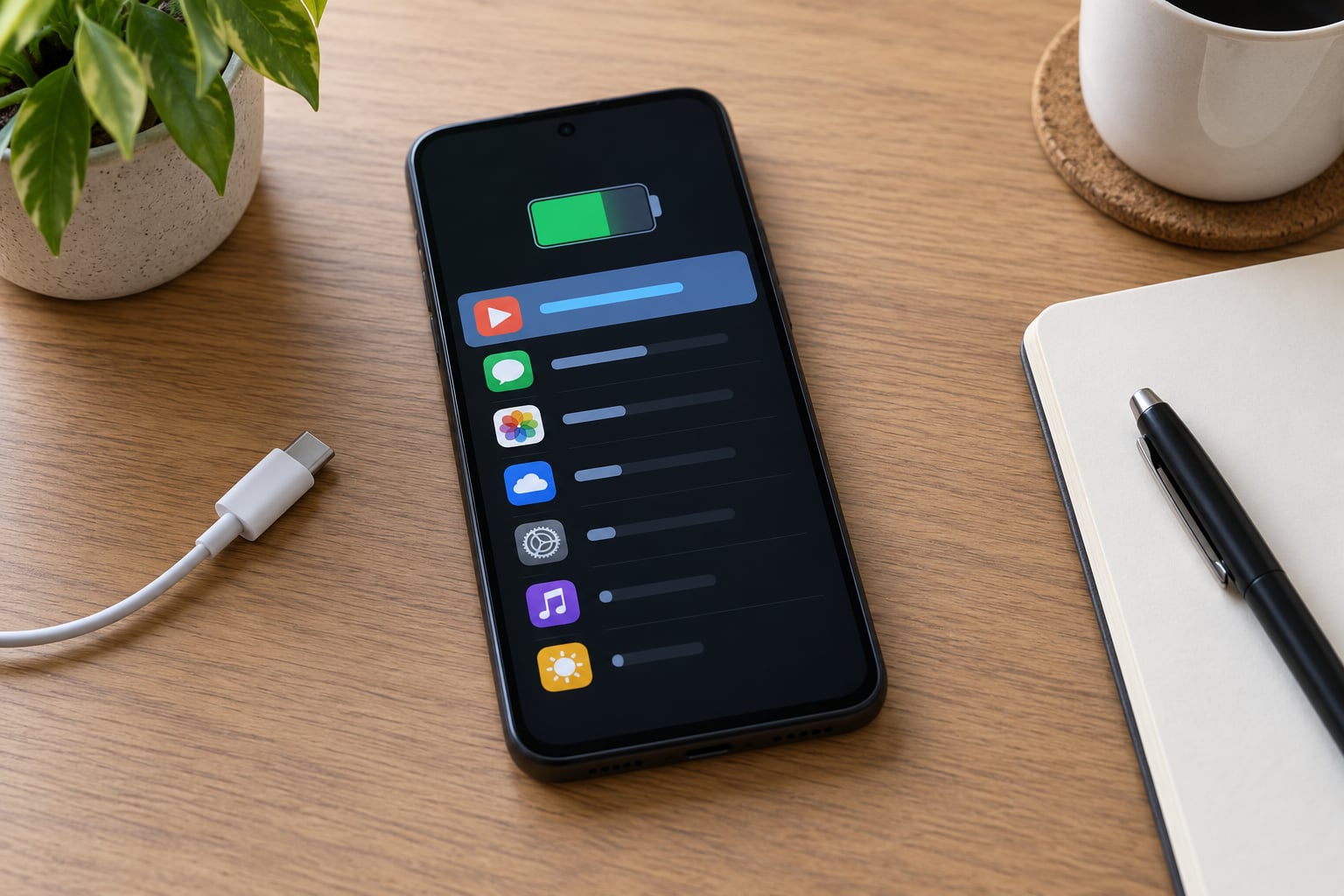
The toggle at the top switches between the last 24 hours and the last 10 days. Below it, iOS lists each app with a coloured bar showing its share of the drain.
Here is the important difference from Android: iOS does not give you a battery percentage per app. It shows relative bars, not numbers, so you are comparing apps against each other rather than reading exact figures.
Colour of the bar tells you something too. Green means the app was in use with the screen on. Blue means background activity, and that is the number you watch on iPhone. An app sitting at the top with a mostly blue bar while you were nowhere near it is your suspect.
Look for a Background Battery Drain
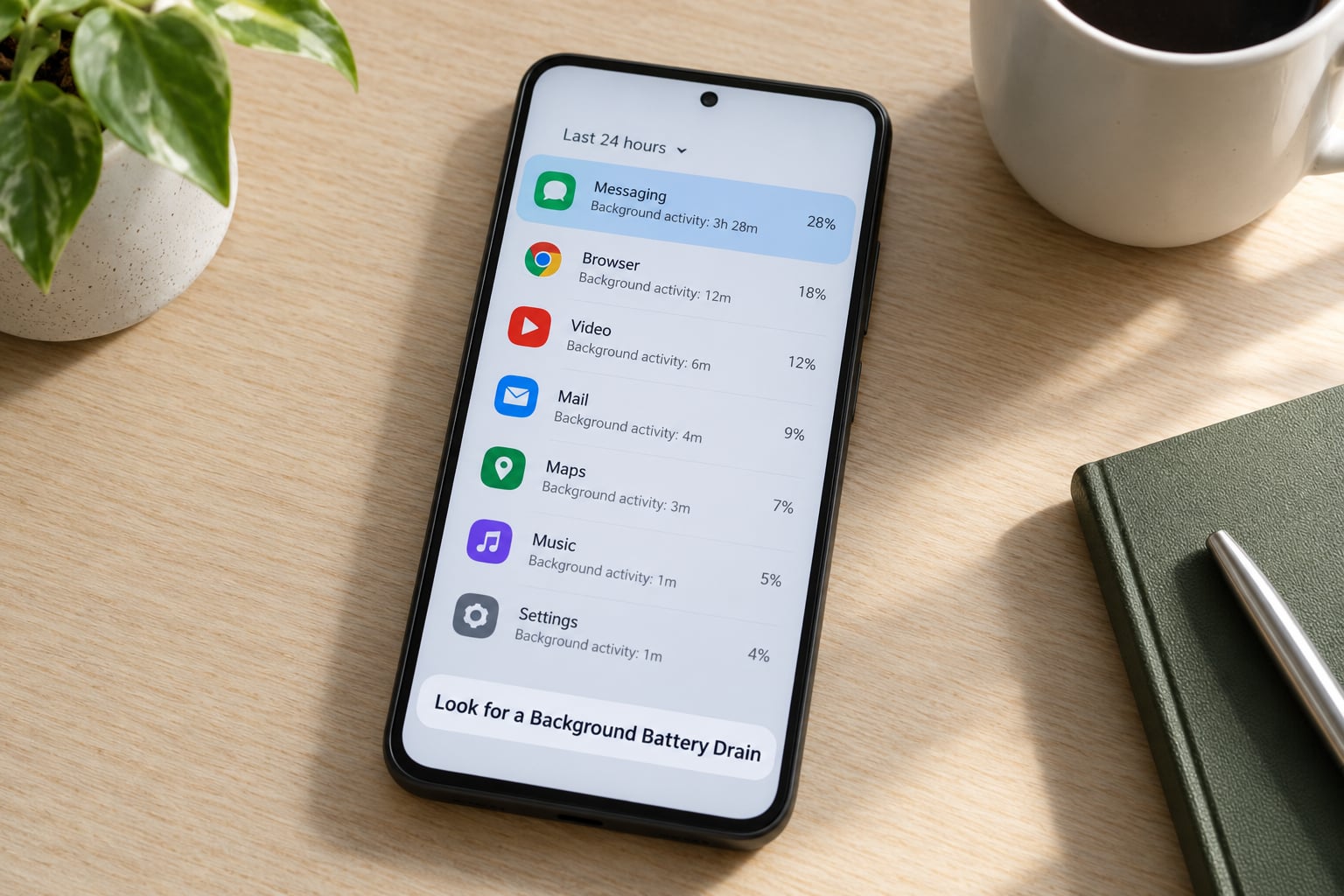
Scroll the list and look for the same shape three times: one app near the top, mostly background, sitting well above everything you actually use.
Common culprits include navigation and fitness apps holding GPS, messaging apps stuck on a sync loop, Bluetooth accessories that keep scanning for a connection, VPN and system utilities, and video or photo apps re-indexing a library. Always-on display and a weak cellular signal also draw power without belonging to any app you would think to check.
Judge the background column against your own screen-on time rather than against the whole list. Ten percent of total drain is unremarkable over a day when you were on the phone for six hours. Three percent overnight, while the phone sat on a table untouched, is a real problem.
| What you see | What it usually means | Worth acting on? |
|---|---|---|
| App near the top, mostly foreground, matches your screen time | You were using it. That is what batteries are for. | No |
| App high on the list with a large background share | Doing work you did not ask for | Yes |
| Display or Screen at the top | The screen is usually the single biggest consumer | Only if brightness or timeout is extreme |
| Drain of roughly 1% every 3 to 4 minutes with the screen on | Normal for a modern phone under normal load | No |
| More than 2% a minute with the screen off | Abnormal standby drain | Yes |
Test Whether the App Is Causing the Drain
This is the step most guides skip. A test takes one evening and removes most of the guesswork.
Start by restarting the phone, so every app’s counters reset together. Note your battery percentage and the time. Leave the suspected app closed for the rest of the day and change nothing else — no brightness tweaks, no new installs.
Check the battery screen again the next morning. If the app dropped off the list or its background share fell sharply, it was the cause. If it is still sitting at the same place, it is not.
Then reopen it briefly, use it for a few minutes, close it properly, and check again after an hour. If the percentage climbs right after you use it, the app is expensive to run but not misbehaving. If it climbs while it sits closed, something is wrong with the app itself, and an update or an uninstall is the fix.
Change one variable at a time. If you restrict background activity and drop brightness in the same evening, you learn nothing about either.
Fix and Prevent Battery Drain
Once you have confirmed the culprit, work down this list in order.
- Update the app and the system. A large share of drain reports trace back to one bad app version rather than a failing battery. Post-update re-indexing is also common and usually settles within a couple of days.
- Clear the cache where the app offers that option, then reopen it.
- Restrict background activity. On Android, open the app’s entry in Settings > Apps, tap Battery, and turn off unrestricted or allow background activity. On iOS, use Settings > General > Background App Refresh and switch off individual apps.
- Trim permissions. Location set to While Using instead of Always, no microphone unless needed, and no Bluetooth or motion access for apps that have no business having them.
- Turn off notifications you ignore. Every push wakes the screen and the radio.
- Use battery saver or Low Power Mode. Android’s Battery Saver and iOS Low Power Mode both throttle background work. They cost a little speed for a lot of battery.
- Force stop as a test, not a habit. It is useful for confirming a suspect. Used repeatedly it breaks push notifications, alarms and widgets.
- Uninstall if the app still misbehaves after an update and a restricted-background test.
Skip the task killers and RAM boosters. They free no real memory, and by force-closing apps they remove them from the low-power state the system had deliberately put them in, so they wake again and burn more power than before. Uninstalling the offender beats installing a manager that creates fresh problems.
If you like watching numbers move in real time, the battery screens themselves will do it, and Android’s developer options add a battery statistics overlay. Tools named in old battery-drainer lists, some untouched for a decade, are not worth reinstalling now.
Common Mistakes to Skip
Most wasted troubleshooting comes from four habits.
- Judging drain from ten minutes of use. Estimates need hours to settle.
- Treating screen-on time as total battery use. Comparing a background figure against a foreground one is like comparing a half-hour jog with a full shift.
- Changing three settings at once. You lose the ability to attribute the result.
- Reading a high percentage as proof an app is faulty. The top of the list is often just the app you used most.
Common Mistakes
Even after you find the drain, it is easy to undo the fix. These are the errors I see most often in troubleshooting threads.
Force stopping an app and forgetting it. The app stops syncing, stops pushing notifications and stops running alarms. Set it back to automatic instead, and restrict background activity through the proper setting rather than force stopping.
Uninstalling pre-installed apps carelessly. Removing a carrier app or a vendor suite can break features the phone relies on. Disable them instead of uninstalling, and leave anything that handles calls, messaging or security alone.
Buying a new battery before ruling out software. Check whether the drain follows an app, a Wi-Fi network or a poor signal area. Heat plus fast drain with no app at the top of the list points to the cell itself, and a phone maker can read the health figure properly.
Two habits prevent most of this. Look at the battery screen once a week for a minute, so you notice a creeping problem early. And after any system update, give the phone two full days before you judge it.
Frequently Asked Questions
Which app drains the most battery on my phone?
Usually the screen itself, listed as Display or Screen, followed by the apps you actually spend time in. Neither is a problem on its own. The app worth investigating is the one sitting high in the list with most of its use in the background, because that work happens whether or not you are holding the phone.
How can I tell whether an app is using battery in the background?
On Android, tap an app in Settings u0026gt; Battery u0026gt; Battery usage and read the foreground and background split. On iPhone, open Settings u0026gt; Battery u0026gt; Battery usage and Level and look for blue portions of each bar, which mark background activity. A large background share on an app you rarely open is your clearest signal.
Does the highest battery usage percentage mean an app is broken?
No. The top entry is usually just the app you used most that day, and figures are estimates over a rolling 24-hour or 10-day window. Only a sustained background share, repeated across several days, points to a real problem. Confirm with a restart, leave the app closed for a day, and see whether its share drops.
Should I use a third-party app to monitor battery drain?
The built-in screens answer most questions for free, and they are the only source of per-app data on iPhone. On Android, a battery monitor can add charge cycle counts, temperature readings and historical charts that Settings hides. Skip task killers and RAM boosters entirely, since closing apps fights the system power management and usually costs you more battery.
Why does my battery drain faster after I install an app?
New apps often start syncing data, indexing photos and uploading backups right after setup, which shows up as heavy background use for a day or two. If it continues past that, the app version itself may be the problem, and switching off background refresh for it or updating it usually settles things. Restricting location access also helps.
When should I uninstall an app because of battery drain?
Uninstall once you have confirmed it: the app stayed at the top with heavy background use across a controlled test, an update did not help, and restricting background activity made no difference. Uninstall straight away if it is an optional app you barely use, or if the phone gets hot while it runs. Do not uninstall system or security apps for drain reasons.
Start tonight, not tomorrow. Restart the phone, open the battery screen, note the top three apps and their background share, then leave the leader closed until morning. That one controlled day tells you more than a week of guessing, and it is the whole answer to how to find out which app is draining your battery.