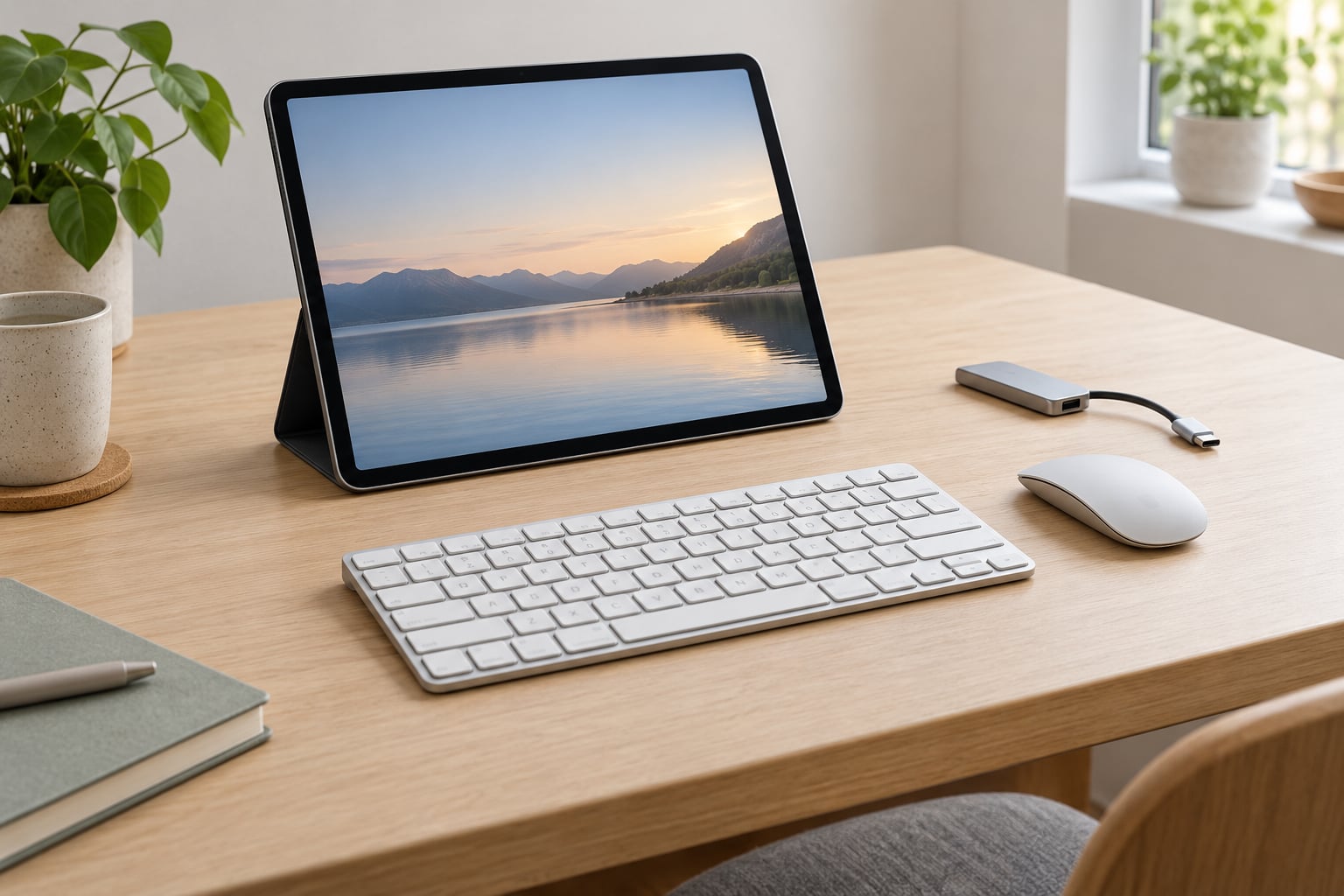
If you have never done this before, the short answer to how to connect a keyboard and mouse to a tablet is simple: turn both accessories on, pair them over Bluetooth, and confirm the passkey. The whole job takes about two minutes. Most people get stuck because the keyboard is in the wrong mode, or because one USB-C port can’t carry a keyboard, a mouse and charging at the same time.
Here is the short version, if you want the keyboard working in the next sixty seconds:
- Turn the keyboard and mouse on and hold their pairing button until the indicator light blinks fast.
- Open your tablet’s Bluetooth settings and switch Bluetooth on.
- Tap the keyboard name in the device list, then the mouse name.
- If a passkey appears on screen, type it on the physical keyboard and press Enter.
- Open a text field and type, then look for a cursor to confirm the mouse is live.
The rest of this guide covers every platform separately, because the menu paths genuinely differ between Android, iPadOS, Windows and ChromeOS. It also covers the wired route, which skips Bluetooth entirely and is usually the more dependable option if you type all day.
Table of Contents›
- How to Connect a Keyboard and Mouse to a Tablet: What You Need First
- How to Connect a Keyboard and Mouse to a Tablet: Step by Step
- Step 1: Choose the Right Connection Method
- Step 2: Prepare the Tablet and Accessories
- Step 3: Connect a Bluetooth Keyboard and Mouse
- Step 4: How to Connect a Keyboard and Mouse with USB or a Wireless Receiver
- Step 5: Test, Configure, and Use the Accessories
- Common Mistakes
- Frequently Asked Questions
- Can I connect a Bluetooth keyboard and mouse to any tablet?
- Why does my tablet not detect the keyboard or mouse?
- Do I need a USB-C adapter to connect a keyboard to an iPad?
- How do I reconnect a wireless keyboard after turning it back on?
- Can I use a wired mouse with a tablet that has only one USB-C port?
- How do I make my tablet recognize both the keyboard and mouse?
- Conclusion
How to Connect a Keyboard and Mouse to a Tablet: What You Need First
Almost every tablet made in the last decade accepts an external keyboard and mouse, because both are standard HID input devices and no special app or driver is involved. What varies is the port and the operating system, so check those two things first. Everything else in this guide assumes you have already confirmed them.
For Bluetooth: a tablet with Bluetooth 4.0 or newer, a keyboard with a pairing button, and a mouse with either a pairing button or a multi-device switch. Most Bluetooth accessories pair with only one device at a time, so if the keyboard is currently paired to your laptop, you have to release it before the tablet can see it. That single fact causes more frustration than anything else in this whole process.
For wired: a USB-C tablet needs either a USB-C keyboard that plugs straight in, or a USB-C to USB-A adapter for a standard keyboard. If you want a wired keyboard and a wired mouse at the same time, you need a multi-port USB-C hub rather than a simple two-port adapter. An adapter is fine for one device; it is not designed to power two peripherals, and a mouse plugged into it may not be recognised at all.
People on Reddit and the Android Central forums keep landing on the same conclusion: a cheap wired USB keyboard with a small USB-C hub is the lowest-friction route, because nothing has to pair or re-pair. Bluetooth wins on convenience and portability, not on reliability.
Also worth having: a charging cable that can run alongside the hub, and enough battery in both peripherals. Weak batteries get blamed on Bluetooth constantly, and the pairing process is genuinely part of that blame. If your keyboard uses AAA cells, swap them before you start debugging anything.
The same hardware works across brands, and that surprises people. Users report the same Bluetooth keyboard behaving flawlessly on a Samsung tablet and failing on a different manufacturer’s tablet, which points at firmware behaviour rather than the accessory itself. The difference shows up in firmware quirks, not in the port.
One more practical note on charging: most USB-C tablets take a single cable that handles data and power at once, so a hub with a pass-through charging port solves the “my only port is taken” problem cleanly. Without one, a wired keyboard means a tablet that will not charge until you unplug it.
How to Connect a Keyboard and Mouse to a Tablet: Step by Step
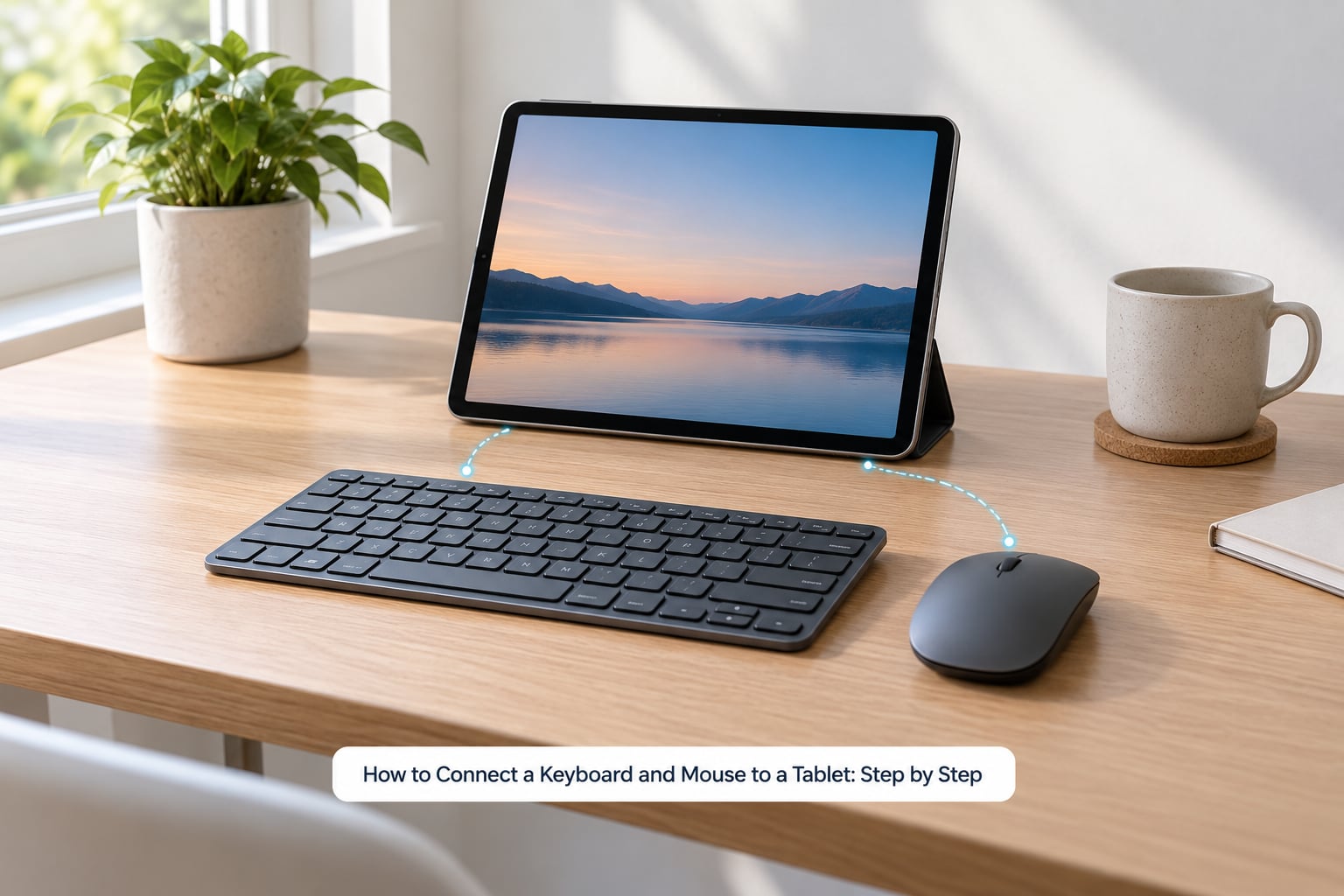
Step 1: Choose the Right Connection Method
Pick the method that matches how you’ll use the tablet. Here is how the three options actually compare.
| Method | What you need | Can you charge while typing? | Best for |
|---|---|---|---|
| Bluetooth | Nothing but a charged keyboard and mouse | Yes, the port stays free | Travel, couch use, occasional work |
| USB-C cable or adapter | A USB-C to USB-A adapter for standard keyboards | Only with a hub that has pass-through charging | Long typing sessions, gaming |
| 2.4GHz wireless receiver | A small USB dongle, usually stored in the keyboard | Yes, dongles draw power from the port | Low-latency input where Bluetooth feels laggy |
Bluetooth is the right default because it needs no adapter and leaves the charging port free. A 2.4GHz receiver is a different technology: it uses a tiny USB dongle that ships with the keyboard, and the connection is made through that dongle rather than through Bluetooth. It is faster and it cannot be intercepted by another paired device, but it occupies a port and it can drop out in a crowded 2.4GHz environment, which matters in offices with a lot of wireless hardware.
Choose wired if the tablet is your main machine for a work day. A dropped Bluetooth connection mid-document is far more annoying than carrying an adapter, and remote-play users who connect both accessories for cloud gaming usually end up on the wired route for the same reason.
Step 2: Prepare the Tablet and Accessories
Do these four things before you open any settings, and most failed pairings never get this far.
- Install any pending system update. Bluetooth firmware bugs are a real cause of intermittent disconnects, and an update often fixes them silently.
- Charge the keyboard and mouse, or fit fresh batteries. Low battery is the most common cause of a keyboard that pairs and then immediately disconnects.
- Check the tablet’s port. USB-C tablets take USB-C accessories directly; older micro-USB tablets need an OTG cable; iPads use a Lightning or USB-C port depending on the model year.
- Put the keyboard into pairing mode: hold the Bluetooth or Connect button on the underside until the indicator light blinks rapidly rather than slowly.
If the light is pulsing once every couple of seconds, the keyboard is on but not discoverable. A fast blink means it is in pairing mode and visible to your tablet.
Step 3: Connect a Bluetooth Keyboard and Mouse
The steps are the same everywhere in outline: turn Bluetooth on, find the device, tap its name, confirm the passkey. Only the menu path changes, so use the row that matches your tablet.
| Tablet system | Where Bluetooth lives | Where paired devices are listed |
|---|---|---|
| Android and Samsung One UI | Settings, then Connections, then Bluetooth | Settings, Connections, Connected devices |
| iPadOS | Settings, then Bluetooth | Settings, Bluetooth, My devices |
| Windows 11 tablets | Settings, Bluetooth and devices, then Bluetooth | Settings, Bluetooth and devices, Devices |
| ChromeOS | Settings, Network, then Bluetooth | Settings, Network, Bluetooth, Connected devices |
On an Android or Samsung tablet, scroll down the Connections screen and tap the toggle at the top. The tablet starts scanning immediately, and any accessory already in pairing mode appears within a few seconds. Tap the keyboard name, and a numeric passkey usually shows on screen. Type that code on the physical keyboard and press Enter to confirm. Repeat the same two taps for the mouse, and some mice confirm with a click instead of a code.
On an iPad, the Bluetooth panel lists accessories in three groups: devices you are not using, devices in range, and devices currently connected. Anything in range will have a Connect button next to it. The passkey step works the same way.
On Windows, Bluetooth sits inside Bluetooth and devices, and the same screen also lists USB receivers you have plugged in, so it is worth checking there if you went the dongle route. ChromeOS keeps it under Settings, Network, Bluetooth, where paired devices sit in the same panel and reconnect automatically when the tablet wakes.
Pair the keyboard first, then the mouse. Doing the mouse first occasionally leaves the tablet treating the pointer as the primary input and skipping the keyboard layout indicator, which makes a working keyboard look broken.
How to confirm it worked: open a text field and the on-screen keyboard should stop appearing because a hardware keyboard is detected, and a small layout indicator changes on the screen. For the mouse, an arrow cursor should follow it, and in most apps a long press or right click should open the context menu. If the cursor appears but the pointer is tiny, that is a size setting rather than a fault; the fix is in the next step.
Step 4: How to Connect a Keyboard and Mouse with USB or a Wireless Receiver
Wired avoids every pairing problem, and it is the fastest route when you already own standard USB-A peripherals.
On a USB-C Android or Windows tablet, plug a USB-C keyboard straight into the port. For a USB-A keyboard, use a USB-C to USB-A adapter, which is a simple pass-through with no power of its own. The tablet supports USB On-The-Go, so it supplies the power itself and no drivers are needed.
On an iPad, the same approach needs the correct adapter. An iPad with a USB-C port takes a USB-C keyboard directly or through a hub; an iPad with a Lightning port needs a Lightning to USB-A adapter. There is no way around the adapter on the older models, because the keyboard is full-size USB-A.
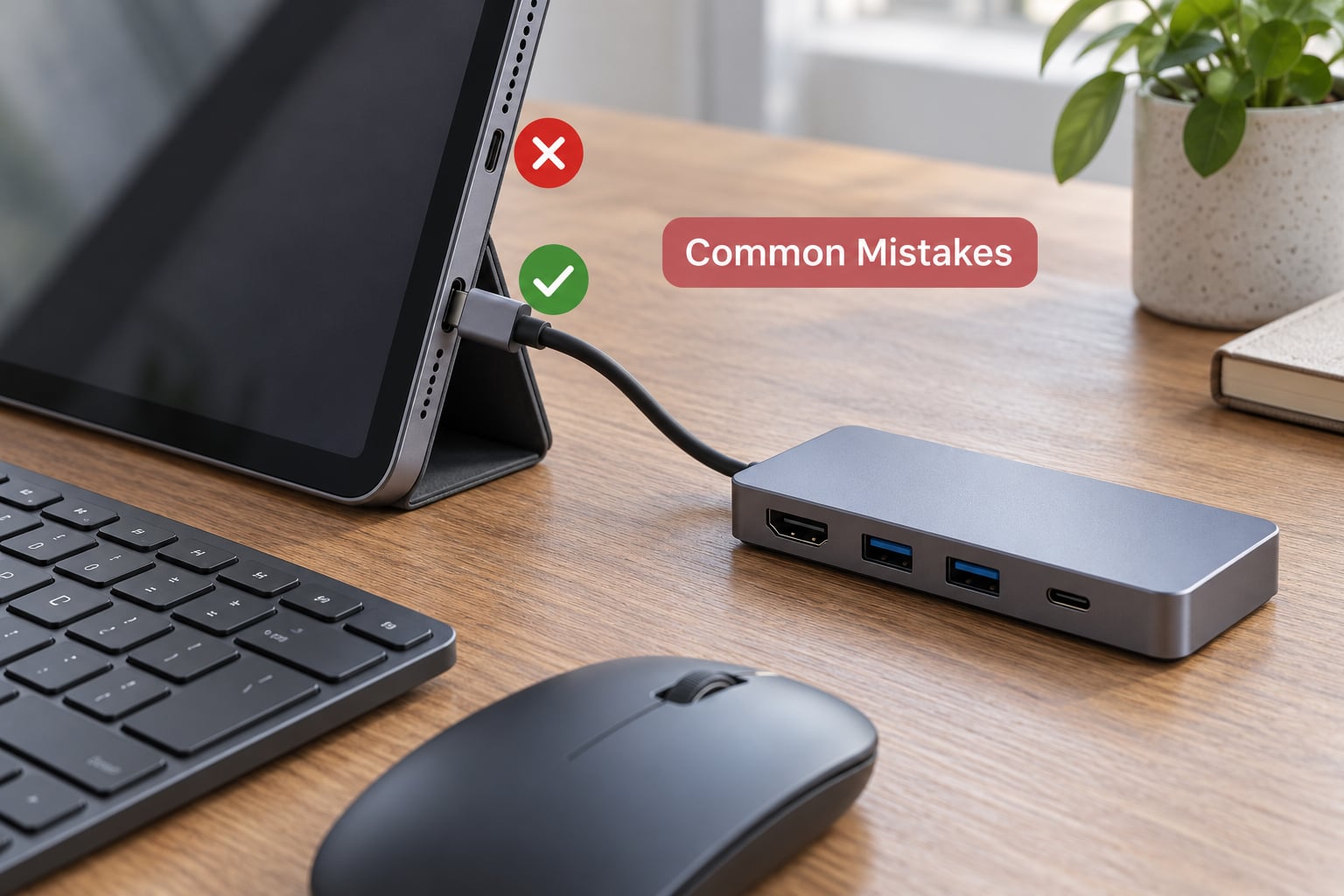
For keyboard plus mouse simultaneously, use a multi-port USB-C hub rather than a two-port adapter. This is the fix for the most common real-world failure: readers report plugging a mouse into a simple adapter and finding it dead, because the adapter cannot supply bus power to two HID peripherals. A hub with at least two USB-A ports, plus a charging pass-through if the tablet is your only power source, resolves it.
With a 2.4GHz keyboard, find the receiver first. It is usually stored in a slot in the battery compartment or taped under the keyboard. Plug the dongle into the tablet, wait a few seconds, then switch the keyboard to its 2.4G channel rather than Bluetooth. Some multi-device keyboards cycle through channels with a single button, so press it once and check whether the tablet registers a new device.
Step 5: Test, Configure, and Use the Accessories
Test in this order: type a line of text, move the pointer, scroll a web page, then try a right click. Each one isolates a different failure, so you know exactly what is wrong rather than guessing.
Once everything responds, adjust the behaviour to suit you. Pointer speed lives under Accessibility on Android and iPadOS, and under Mouse in Windows Bluetooth and devices. Natural scrolling is usually on by default on iPadOS and off by default on Windows, which surprises people who switch between the two. Cursor size is separate from speed and is worth increasing on a large tablet screen viewed from a desk.
Auto-reconnect usually needs nothing from you. Both accessories remember the tablet and re-link within a second or two of being switched on, as long as the tablet’s Bluetooth is on and the devices are awake. If reconnection is unreliable, the fix is to forget the device on both sides and pair it again, which clears the stored profile.
If you also use a laptop, look for a keyboard with a multi-device switch. These hold two or three Bluetooth profiles and move between the tablet and laptop with a button press, which solves the problem forum users describe constantly: a keyboard that always grabs the laptop, forcing a full unpair and re-pair every time you switch devices. A keyboard paired to only one device cannot be shared, so this feature is worth paying for if you move between machines daily.
Modifier keys need a moment of adjustment if you are used to a laptop. On Android and Windows tablets the familiar Ctrl and Alt combinations behave normally, and Tab cycles fields the way it does on a laptop. iPadOS is the odd one out: the Command key sits where Control would be on a PC keyboard, and a few shortcuts simply have no equivalent. Android tablets also ship with a Game Controller mode in developer options, which remaps buttons for games and is worth switching off if your keys start doing strange things.
For a full desktop-style workspace on a Samsung Galaxy tablet, connect a mouse and keyboard and then launch DeX from the quick settings panel. DeX adds a taskbar, windowed apps and a desktop layout, and it works with the same external input devices you just paired.
There is one good reason to keep the tablet as a standalone machine even with peripherals attached: presentations. Plug the tablet into a projector or external display, connect the keyboard and mouse, and you can advance slides from the keyboard instead of walking to the screen. Long documents are easier for the same reason, since you stop hunching over the glass to read your own typing.
For anyone who types a lot, the physical keyboard also reduces wrist strain noticeably. Users managing repetitive strain injury treat an external keyboard and mouse as their main tool, not a productivity accessory, and a full-size layout lets you rest your hands flat rather than reaching for a touchscreen all day.
Common Mistakes
Work through these in order. The list runs from most to least common, and the first three fix the majority of failures on their own.
The batteries are dead. This is the top cause and it is constantly misdiagnosed as a pairing problem. A keyboard with weak cells pairs, then drops thirty seconds later. Replace or charge the batteries, then pair again from scratch.
Pairing mode was not actually active. The keyboard was switched on but never put into pairing mode, so the tablet’s scan walks right past it. Hold the pairing button until the indicator blinks rapidly, and only then open the tablet’s Bluetooth list. Keep the keyboard close while you scan.
The keyboard is paired to another device. Standard Bluetooth accessories hold one active connection. If the light goes solid the moment you tap it on the tablet, it is already bound to a laptop or phone. Switch that device off, or press and hold the pairing button to clear the old link.
One port, three things to plug in. A wired keyboard occupies the tablet’s only USB-C port, so there is no way to charge or add a mouse. This is what a hub is for. Choose one with two or more USB-A ports and a charging pass-through.
The adapter is not a hub. A two-port adapter will often accept a keyboard and then ignore a mouse, because it cannot supply power to both. If one device works and the other does not, replace the adapter with a powered hub rather than re-pairing anything.
Distance or interference. Bluetooth is far weaker than people expect at the far end of a large desk or through a desk edge. Bring the keyboard to within a foot of the tablet. If the connection drops constantly near a router or a cluster of wireless hardware, switch to a 2.4GHz receiver or a wired connection.
The paired-device list is stale. On a Samsung tablet, community moderators point users to Settings, then General Management, then Keyboard, and reset the list and default keyboard from there. On iPad, forget the device in Bluetooth settings and pair again. A fresh profile resolves a surprising share of “it connects but nothing types” cases.
The app ignores the mouse. Some apps, especially games and video players built for touch, will not respond to an external pointer no matter how well it is connected. Check the mouse in a normal app such as Settings or a browser before assuming the hardware is faulty.
Connected, but there is no cursor. A mouse can be paired and listed as connected while the tablet still shows no pointer. On iPadOS, check that a Bluetooth mouse is actually selected under Settings, Accessibility, Pointer Control, because the tablet tracks the last mouse used and may still be pointed at the touchscreen. On Android, some OEM builds need the mouse toggled off and on in Bluetooth settings before the cursor appears.
The device blocks external input. School, work and kiosk-managed tablets often have external input disabled by policy, and no amount of pairing will change that. If every other step works on a colleague’s tablet but not yours, check with whoever manages the device.
To disconnect cleanly, forget the device in the tablet’s Bluetooth settings rather than just switching the accessory off. Forgetting clears the stored pairing profile on both sides, so the keyboard is free to attach to your laptop the next time you ask it to, with no pairing mode dance.
One habit prevents most future trouble: when you finish with a Bluetooth keyboard, unpair it rather than just switching it off. An unpaired keyboard is available to the next device instead of grabbing whatever is nearest.
Frequently Asked Questions
Can I connect a Bluetooth keyboard and mouse to any tablet?
Almost any tablet made in the last ten years will accept both, since they are standard HID devices and need no special app or driver. Check that your tablet has Bluetooth 4.0 or newer, and that the accessories are not already paired to another device. Managed or school-issued tablets sometimes block external input by policy, which is the main exception.
Why does my tablet not detect the keyboard or mouse?
Work through the causes in order: replace or charge the batteries, then confirm pairing mode is active by holding the connect button until the indicator blinks rapidly. Next, move the accessory within a foot of the tablet and rescan. If it still does not appear, the device may be paired to your laptop already, so clear that link or forget the device on the tablet and pair again.
Do I need a USB-C adapter to connect a keyboard to an iPad?
It depends on the port. An iPad with a USB-C port takes a USB-C keyboard directly, or through a USB-C hub. An iPad with a Lightning port needs a Lightning to USB-A adapter for a standard keyboard. The adapter is unavoidable on the older models because the keyboard connector is full-size USB-A. Apple and third-party both work; Bluetooth is the simpler route.
How do I reconnect a wireless keyboard after turning it back on?
Usually nothing is required. Press the power switch, wait a second or two, and the keyboard re-links to the last device it was paired with. If it does not, confirm Bluetooth is switched on in the tablet’s settings and that the tablet is not already connected to a different keyboard. If reconnection keeps failing, forget the device on both sides and pair it fresh.
Can I use a wired mouse with a tablet that has only one USB-C port?
Yes, but the port is then occupied. You can charge the tablet over wireless charging if the model supports it, otherwise a wired mouse means you need a USB-C hub with a charging pass-through, and a Bluetooth mouse avoids the port conflict entirely.
How do I make my tablet recognize both the keyboard and mouse?
Pair them one at a time. Put the keyboard in pairing mode, tap its name in the tablet’s Bluetooth list, type the passkey if one appears, then repeat for the mouse with its own pairing button. Over Bluetooth, both can stay connected at once with nothing else. If both are wired, you need a multi-port USB-C hub, since a simple adapter usually cannot power two peripherals.
Conclusion
Start with Bluetooth: switch the keyboard and mouse on, hold the pairing button until the light blinks fast, and tap each device in your tablet’s Bluetooth settings. Type a line, move the cursor, and you are done. If the light blinks slowly, or the device never appears in the list, the batteries or the pairing mode are the cause, not the tablet. For a full day of typing, wire in a keyboard through a USB-C hub with charging pass-through and skip the pairing entirely.