If other people sound like they are talking in a faraway room while you are holding the phone at full volume, there are six usual causes: the separate call volume slider is not actually at maximum, a case or accessory is blocking the earpiece, the grille is packed with lint, a hearing-audio or accessibility setting is capping output, a software update changed the audio tuning, or the earpiece module itself is failing. Most people solve how to fix low call volume on a phone in about 15 minutes with the eight steps below.
The order matters. Starting with a factory reset or a hidden engineering menu wastes an afternoon and, in the case of the engineering codes, can damage the speaker. Work from the least invasive check to the most invasive one, and stop as soon as the volume comes back.
Every menu path below applies to current iOS and current Android with One UI or stock skins. Names move around between versions, so I have named the setting rather than only the menu position where that matters. All of it was last checked against shipping phones in 2026.
Table of Contents›
- What You Need
- Step-by-Step
- 1. Check the call volume and audio settings
- 2. Restart the phone and update its software
- 3. Test without the case and accessories
- 4. Check microphone and speaker permissions
- 5. Test calls with another device
- 6. Check for network or carrier issues
- 7. Reset relevant audio settings
- 8. Contact support or arrange repair
- Common Mistakes
- Frequently Asked Questions
- Why is one side of my phone call quiet?
- How do I increase call volume on an Android phone?
- How do I fix low call volume on an iPhone?
- Can a phone case make calls sound quieter?
- Is low call volume always a hardware problem?
- Can water damage cause a phone call to sound quiet?
- Conclusion
What You Need
You need very little. Gather these five things before you start and the diagnosis stops being guesswork:
- Your phone, charged above 50 percent so a restart is not interrupted.
- A second phone or landline to place a test call from, so you can isolate whether the problem follows your phone.
- A pair of wired earbuds or a Bluetooth headset, to split the earpiece fault from the software fault.
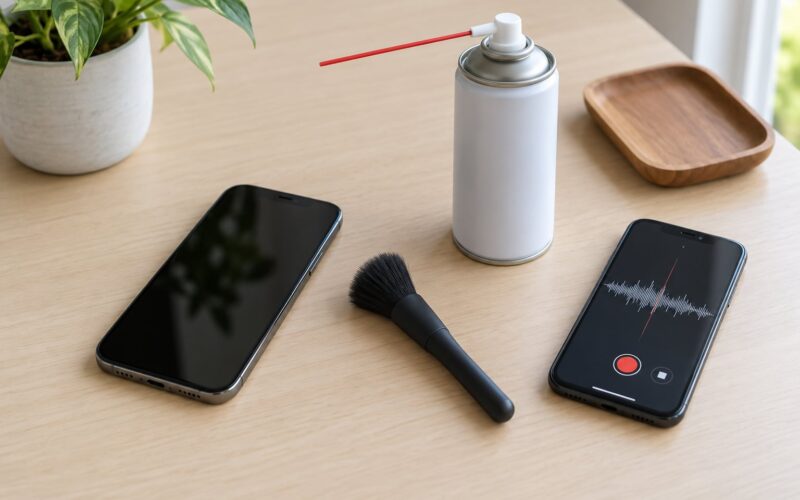
- A soft dry cloth and a soft dry brush, such as a clean makeup brush or an anti-static brush, for the grille.
- The case, screen protector and any accessory you normally use, because one of them is frequently the culprit.
Do not add liquid of any kind to the list. Water and cleaning sprays do more harm to a phone than a lint-packed grille ever does.
Step-by-Step
This table is the fastest way to narrow the fault before you touch anything. Find the row that matches what you hear, then jump to the step that fixes it.
| What you hear | Likely cause | Go to |
|---|---|---|
| Quiet on the earpiece, fine on speakerphone | Earpiece receiver or its grille | Step 3 |
| Quiet on speakerphone, fine on the earpiece | Bottom-firing loudspeaker or its mesh | Step 3 |
| Quiet everywhere, including a second pair of earbuds | Call volume slider or software tuning | Step 1 |
| Media is loud, cellular calls are faint | Call and media sliders are independent | Step 1 |
| Fine on WhatsApp and FaceTime, faint on cellular calls | Carrier audio path, VoLTE or Wi-Fi calling | Step 6 |
| Fine until an update, then quiet | Post-update regression or firmware bug | Step 2 |
| Only people at one spot sound faint | Signal strength and codec at that location | Step 6 |
| Quiet after water exposure or a drop | Liquid in the port or a damaged receiver | Step 8 |
1. Check the call volume and audio settings
Your phone keeps call volume on its own slider, separate from media and ringer volume. This is the single most common reason people cannot fix low call volume: media sounds loud, so they assume calls should too, but the call channel is sitting much lower. While a call is connected, press the volume up button repeatedly until the level stops rising, then put the phone on speaker for a moment and switch back to the earpiece so the level re-syncs. Users who solved a stubborn quiet earpiece this way found that cycling the slider up, down and back up during a live call re-seated a stale state.
Then confirm where the audio is being sent. A connected Bluetooth headset or a pair of wired earbuds will take over the call audio, so your in-call buttons control the headset, not the phone. Disconnect everything, or open the audio output picker during the call and choose the handset.
Turn off any loudness limiter. On iPhone, open Settings > Accessibility > Audio & Visual and switch off Phone Noise Cancellation and Audio Zoom. On Android, look for Reduce Loud Sounds or a safe volume limit on the same volume screen you just raised, and switch it off. Do not confuse it with Do not disturb, which silences alerts rather than capping call output. Some Android builds warn you the first time you exceed a safe listening level, which some people tap through without reading.
| Platform | Where the call volume slider lives |
|---|---|
| iPhone and iPad | In-call volume rocker during the call; Settings > Sounds & Haptics > Ringer and Alerts for ring and alert level |
| Stock Android | Settings > Sound & vibration > Volume > Call volume |
| Samsung One UI | Settings > Sounds and Vibration > Volume > Call volume |
| Samsung hearing-audio preset | Settings > Accessibility > Hearing enhancement > Sound customisation > Adjust sound, then Make the sound clearer |
How to tell it worked: place a call, hold the phone to your ear without the case, and listen for the other person at the top of the range. If it is still faint, move to step 2.
2. Restart the phone and update its software
A restart clears the audio daemon, which is the process that owns call volume on both platforms. Hold the side button and the volume down button together until the slider appears on an iPhone, then drag it to power off. On Android, hold the power button for a few seconds and choose Restart or Power off and then Power on. If your phone is unresponsive, hold the power and volume down buttons together for about ten seconds until the logo appears.
Check for an operating system update afterwards. On iPhone that is Settings > General > Software Update, and on Android it is Settings > System > System update or Settings > About phone > Software update, depending on the skin. Install any pending update, since audio bugs are frequently patched and never appear in the release notes.
If the volume dropped right after an update, test before and after a Safe mode boot. Samsung devices boot to Safe mode with the power and volume down buttons held while powering on. If calls are normal in Safe mode, a third-party app is interfering rather than the system itself. Note the exact time the volume changed, because that timestamp is what support asks for first.
Custom ROMs have their own tuning. Owners running Lineage-based systems have filed low call volume as a tracked upstream bug rather than a hardware fault, which tells you to check your ROM’s issue tracker before buying a new handset.
How to tell it worked: restart, then make a test call before you reconnect anything. Persistent quiet across a restart on a current phone points at settings or hardware, not at a stuck process.
3. Test without the case and accessories
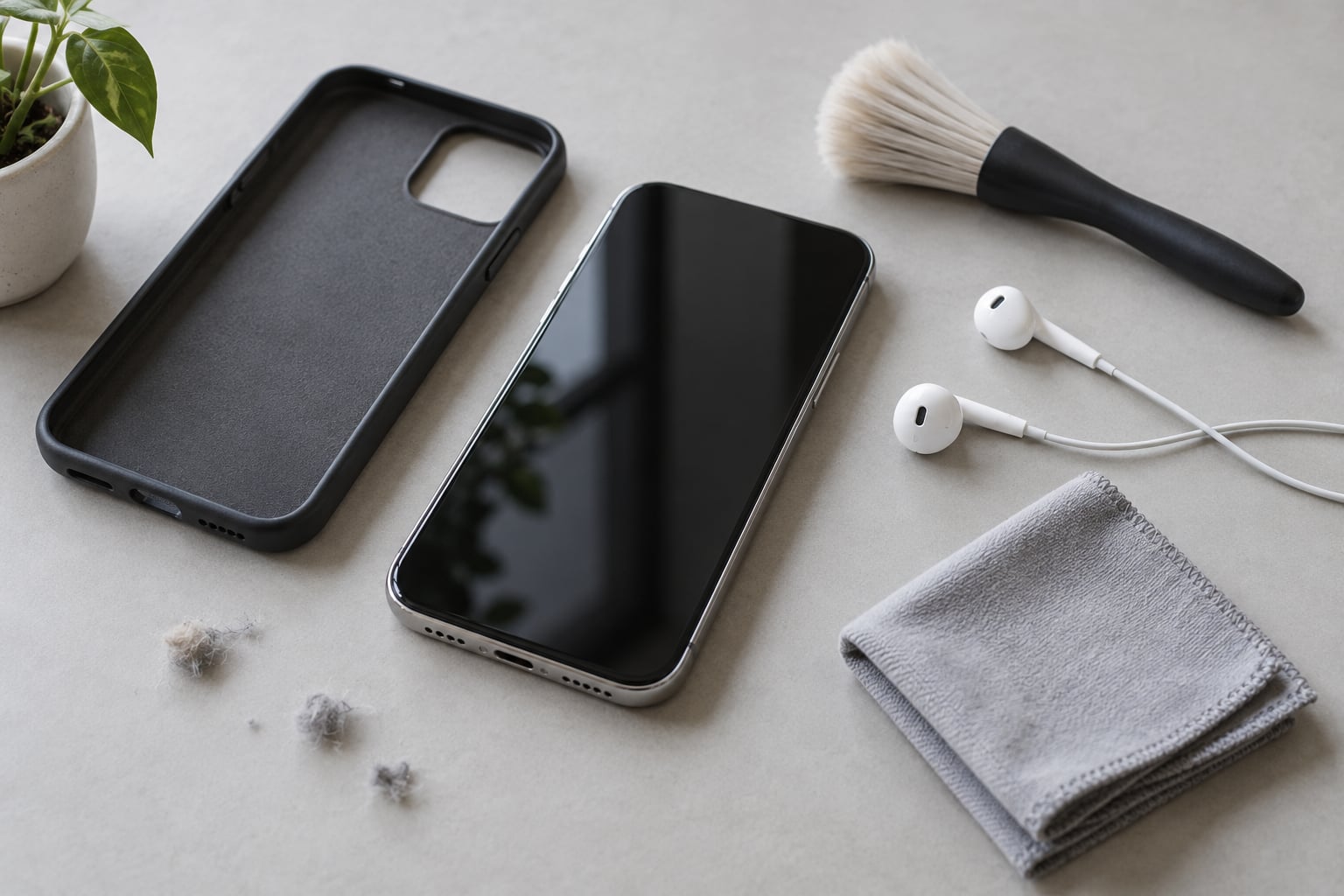
Take the case off and make the same call. Cases with raised lips, magnetic mounts, kickstands and cardholders sit directly over the bottom loudspeaker, and a thick case rim can press against the earpiece gap at the top of the screen. If the phone is in a car mount, a pop socket or a wallet case, test bare first, then add each accessory back one at a time. Most case-related fixes stop there.
Clean the openings next, with the phone powered off. Look into the earpiece slot at the top and the loudspeaker mesh at the bottom with a flashlight. Hold the phone screen-down so loose lint falls out, then work a dry soft brush across the openings at a shallow angle. Keep the phone away from pockets that shed lint in the meantime.
Do not push anything metal into either opening, do not use a toothbrush handle or a pin, and do not spray cleaner, alcohol or water into the grille. Skip compressed air held close, because it can force debris further in and drive moisture into the ports. Hair dryers and heat guns are worse still, since they warp adhesives and cook the microphone membranes.
How to tell it worked: a clogged grille often goes from muffled to clear immediately, with no settings change. If nothing changed, the debris is not the cause and you can stop cleaning.
4. Check microphone and speaker permissions
Permission problems and voice effects change what other people hear, not what you hear, but they get mixed into the same complaint, so rule them out. On iPhone open Settings > Privacy & Security > Microphone and confirm the calling apps are enabled. On Android the equivalent is Settings > Apps > See all apps > [app] > Permissions > Microphone.
Then check the voice processing. Voice isolation, noise suppression and voice clarity are meant to make your voice sound better to the other person, and users on Sony devices reported that people could not hear them well on calls until they lowered Microphone noise suppression under call settings. iPhone keeps these under Settings > Accessibility > Audio & Visual. If you cannot hear yourself clearly on a test call played back through the speaker, that is the setting to look at.
If the other person says they cannot hear you but you can hear them fine, this section is your whole problem and steps 3 through 8 are wasted effort. Switch off the enhancement, and check the microphone port at the bottom of the phone for the same lint build-up described above.
5. Test calls with another device
Place a call from a second phone to your handset. Then have someone call you from a third number, ideally one on a different carrier. Four results come out of this and each one narrows things sharply:
- Every caller is faint and every route is faint. Software, or a failing speaker. Keep going.
- Every route is faint but only on your phone. The hardware or the audio settings on your handset are the suspect.
- Only one contact is faint. Their audio is being routed through something on their end, and your phone is fine.
- Only one location or network is faint. Signal and codec. Skip to step 6.
Now add a headset. Connect a pair of wired earbuds or a Bluetooth headset and take the same call. If the audio is clear through the headset while the earpiece stays faint, the fault is the earpiece receiver or its grille, not your settings. That single test resolves more cases than any other move in this list.
While you have the headset on, confirm the headset’s own volume is up. People replace the phone’s case, restart it and clean the grille before noticing that the earpiece on a Bluetooth headset is turned down.
6. Check for network or carrier issues
Call audio is encoded and decoded on both ends, so a weak or congested cell site can sound thin and quiet even when the phone is doing everything right. Move to a different location, ideally outdoors or near a window, and call the same person. If the volume recovers, the network at your usual spot is the cause and your phone needs no repair.
Check what your phone is using for the call. On Android, Settings > Network & internet > SIMs shows the network type, and Settings > Network & internet > Wi-Fi calling toggles calls over Wi-Fi. Toggling Wi-Fi calling off, placing a call, then toggling it back on and calling again tells you whether the two paths differ. VoLTE handles high-definition voice, so a carrier that has not enabled it on your line can deliver noticeably quieter audio.
Airplane mode clears the radio and forces the handset to renegotiate with the network. Toggle it on, wait thirty seconds and toggle it off, then retest. If the symptom follows the SIM to a different handset, the line or the account is the problem and your carrier is where the fix lives.
On Android you can reseat the SIM yourself: power down, pull the tray, look at the gold contacts for dust or a bent edge, and reseat it firmly. On iPhones with a physical tray the same applies. An eSIM just needs a toggle in Settings > Cellular.
Call your carrier and describe it precisely: which routes are affected, which are not, and when it started. If the phone’s own diagnostics show something, read them out. Carrier support can see signal quality and VoLTE registration on their side, which you cannot see.
7. Reset relevant audio settings
Before resetting anything, back the phone up or confirm a recent backup exists. These resets are recoverable but annoying, and there is no point losing a day of setup over a Bluetooth pairing.
Start with the least destructive option. Forget every Bluetooth device: on iPhone Settings > Bluetooth lists connected devices, tap each one and choose Forget This Device. On Android Settings > Connected devices > Bluetooth does the same. Pair the headset once more afterwards and retest a call.
Next, review accessibility and hearing-audio settings, because these intentionally reshape output. On iPhone, Settings > Accessibility > Audio & Visual holds Phone Noise Cancellation, Audio Zoom and the hearing-aid support settings. On Android, Settings > Accessibility > Hearing enhancement holds Sound customisation and the Make the sound clearer presets. Turn them off, test the call, and put back only what genuinely helps you.
Then use the platform resets. On iPhone, Settings > General > Transfer or Reset iPhone > Reset > Reset All Settings clears every preference while leaving your data intact. On Android, Settings > System > Reset options offers Reset Wi-Fi, mobile and Bluetooth network settings, and on Samsung it also offers Reset all settings.
A factory reset is the last resort and only makes sense once hardware is ruled out. Nothing about a wipe fixes a clogged grille or a dead receiver, and it will not touch the problem if it is on the carrier’s side.
How to tell it worked: reset, then immediately place a test call before reinstalling anything. If the volume is quiet again with clean settings and no accessories, stop resetting and move to step 8.
8. Contact support or arrange repair
Stop troubleshooting when three things are true at once: call volume is at maximum, media volume is normal, and a headset test shows clear audio through a pair of earbuds. That combination points at the earpiece receiver or the loudspeaker module, and no setting will change it.
Other red flags that belong with repair rather than more settings: visible liquid in a port or a speaker that crackles after the phone was wet, a receiver that has gone quiet after a drop, distortion or buzzing at high volume that was not there before, or damage to the charging port. If a phone took a liquid hit, power it off and leave it off rather than testing whether it still works.
Before you hand it over, back the phone up. On iPhone, Settings > General > Transfer or Reset iPhone > Erase All Content and Settings or a full backup to a computer both work. On Android, use the backup option inside Settings > System > Backup, or transfer the device to a computer. Repair centres need a wiped phone, and losing data to a screen replacement is a bad trade.
Then open a warranty claim with the manufacturer rather than a third-party shop if the phone is still covered, and note whether the issue began before or after an update, since software-related audio faults are sometimes resolved with a repair or a refund rather than parts. If a specific repair is a simple module swap, an authorised centre can usually do it the same day, while a board-level fault takes longer. Keep the case and any accessories you were using so support can tell whether they contribute to the fault.
Common Mistakes
Turning up media volume and stopping there. Media and calls are different channels. You can have a phone that plays music at full blast and carries cellular calls at half that level, and WhatsApp calls will often sound normal because they use the media path. Always raise the call slider during a live call.
Forgetting the case and the connected headset. These are the two most common causes reported by users, and the two most commonly skipped. A test call takes thirty seconds, so make it before changing a single setting.
Testing only on Wi-Fi. If calls run over Wi-Fi calling, you are testing a different audio path than the one that is failing. Turn Wi-Fi calling off and retest before deciding anything is broken.
Running old hidden volume codes. The advice still circulating online is built on an Android engineering menu from around version 4.0, using a dialer code and a parameter slider pushed to its maximum. Those menus are gone from current phones, and forcing an amplifier past its designed limit can blow the receiver outright. If you have a modern handset, skip this entirely.
Turning Dolby Atmos off to fix a call. Community advice conflicts on this one. Moderators on Samsung forums say leave it on, and disabling a processing feature rarely touches the call channel anyway. Change one thing at a time so you know which change did what.
Using liquid on the grille. Cleaning sprays and alcohol can push residue deeper or damage the mesh adhesive. Dry brushing and gravity do most of the work with none of the risk.
Resetting with no backup. Every reset path, including a factory wipe, can go wrong mid-process. Confirm the backup before you start, not after.
Replacing the battery first. Battery diagnostics describe battery health, not audio output. A weak battery does not make calls quiet, so spending money there means the problem comes back the same afternoon.
One last note for the readers who landed here with the opposite problem. Call volume has its own independent slider, which is why some people cannot turn their calls down any further even at the bottom of the range. On iPhone, adjust it live during a call with the volume rocker or Settings > Sounds & Haptics > Ringer and Alerts. On Android, Settings > Sound & vibration > Volume > Call volume gives the same independent control. Keep media volume where you want it, set call volume low, and the two stop interfering.
Frequently Asked Questions
Why is one side of my phone call quiet?
It usually means one audio channel or one physical speaker is failing, not the whole handset. Test the same call on speakerphone and through a pair of earbuds: clear on speakerphone but faint at the ear points to the earpiece receiver and its grille, while the reverse points to the bottom-firing loudspeaker. If both routes are quiet, the cause is the call volume slider, an audio setting, or the network path rather than one broken part.
How do I increase call volume on an Android phone?
On stock Android, open Settings, then Sound and vibration, then Volume, and raise Call volume to the top of its range. Samsung One UI uses Sounds and Vibration instead of Sound and vibration for that same screen. Raise it during a live call too, so the slider applies to the active route, and check that Reduce Loud Sounds or a safe volume limit is switched off. If the headset is connected, raise the headset volume, not the phone’s.
How do I fix low call volume on an iPhone?
Start by raising the volume rocker during the call, then put the phone on speaker and back to the earpiece so the level re-syncs. Check Settings, Sounds and Haptics, Ringer and Alerts for ring and alert levels, and Settings, Accessibility, Audio and Visual for Phone Noise Cancellation and Audio Zoom, which can cap output. Disconnect any Bluetooth or wired headset, restart the iPhone, then test with the case off.
Can a phone case make calls sound quieter?
Yes, and users name it as a leading cause more often than any setting. Raised lips, wallet cases, magnetic mounts and cardholders cover the bottom loudspeaker, while a thick rim at the top can press against the earpiece gap and damp it. Take the case off and make the same call. If the volume comes back, add the case on again piece by piece to find the part that interferes, then adjust or replace that case.
Is low call volume always a hardware problem?
No. Hardware is only likely when call volume is at maximum, media volume is normal, no case or accessory is fitted, and audio through a pair of earbuds is clear while the built-in earpiece stays faint. A clogged grille, a separate call slider, an accessibility preset and post-update software tuning all cause quiet calls and all cost nothing to rule out. Test those first, because most cases never reach hardware.
Can water damage cause a phone call to sound quiet?
Yes, and it often sounds muffled rather than simply quiet. Liquid can block the earpiece openings, reach the receiver membrane, or trip a moisture sensor that reduces output. Do not test whether the phone still works, and do not charge it. Power it off, leave it off, and take it to an authorised service centre, because corrosion keeps working after the phone appears dry and gets worse the longer it sits.
Conclusion
Start with the call volume slider, raised during a live call, because it is a different channel from media and it is free to check. Restart the phone next, then make the same test call with the case off and no headset connected. Those three moves take under five minutes and resolve most of what people bring to this problem.
If calls are still faint, work down the eight steps in order and stop the moment the volume returns. The order runs from free and reversible to expensive and permanent, and it never asks you to trust a dialer code from a forum post written a decade ago.